

The Google Search Console error “Type object must be nested inside a type object” usually means that part of your structured data has been added to a page without being connected to the main item it describes.
For example, a product page might contain its product information in one structured data block and its customer ratings in another. The rating exists, but Google cannot tell which product it belongs to.
The same problem can affect prices, offers, shipping information, breadcrumbs, addresses and other structured data.
It often happens when different plugins, apps or website templates generate their own markup without connecting it properly. A review app might add ratings separately from the product information, or a tag manager might inject another structured data block after the page loads.
The fix is usually to make sure each part of the structured data belongs to the correct main item.
This guide explains what the error means, why it matters and how to fix it across your website. It is intended for development teams responsible for website templates, SEO and marketing teams monitoring Google Search Console, and content and ecommerce teams managing the apps that generate structured data.
1. What Happened?
Google has found a structured data object that it expects to be part of another object, but it has been added separately.
Google’s Search Console Help documentation describes this issue as “Type object must be nested inside a type object”. Its recommended fix is to check the structured data and make sure the objects are nested correctly.
To understand the problem, it helps to think of structured data as a tree.
A product is the main item. Other information about that product sits underneath it, connected through specific properties.
For example:
- The product’s price belongs inside
offers. - Its star rating belongs inside
aggregateRating. - Customer reviews belong inside
review. - Its address belongs inside
addresswhen describing a business or location.
Some structured data types describe parts of something else rather than a complete item on their own. Examples include Offer, ListItem and PostalAddress.
If Google finds one of these objects without the expected parent, it may not be able to use the information.
What Does the Error Look Like?
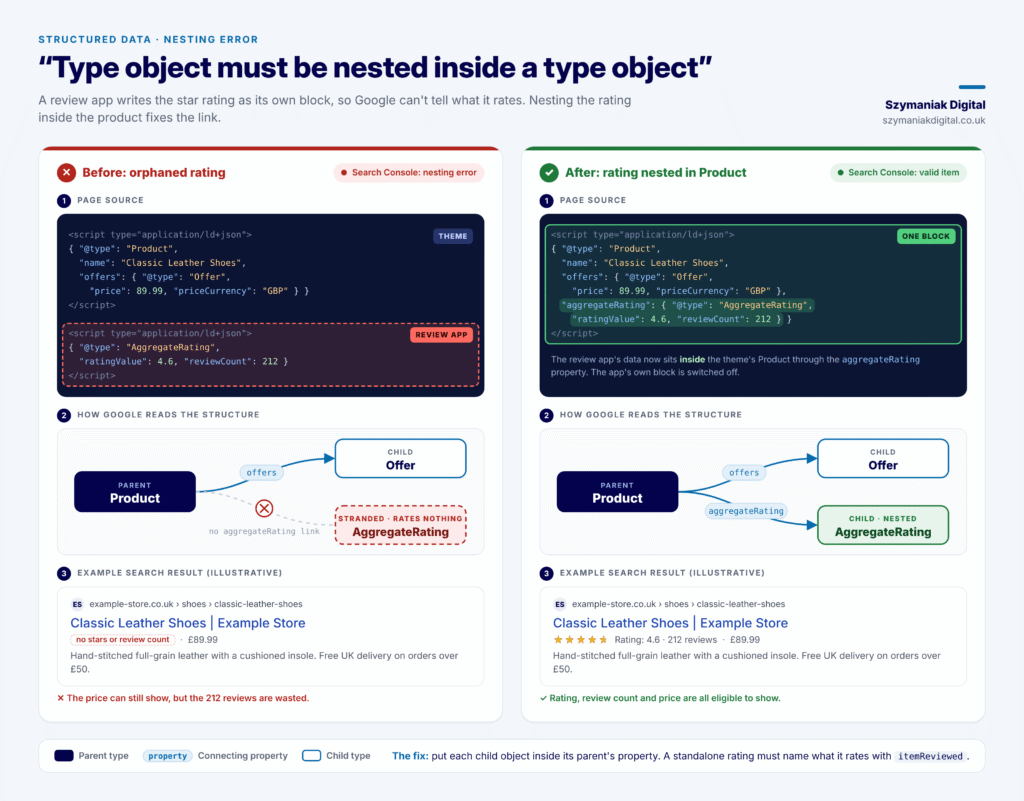
A common example is a product page where the website theme generates the product information and a review app generates the ratings separately.
The theme might output:
{
  "@context": "https://schema.org",
  "@type": "Product",
  "name": "Classic Leather Shoes",
  "offers": {
    "@type": "Offer",
    "price": 89.99,
    "priceCurrency": "GBP"
  }
}
The review app then adds a separate block:
{
  "@context": "https://schema.org",
  "@type": "AggregateRating",
  "ratingValue": 4.6,
  "reviewCount": 212
}
The problem is that the rating isn’t connected to the product.
Google can see a product and a rating, but it doesn’t know which product the rating belongs to.
The fix is to put the rating inside the product’s structured data using the aggregateRating property.
The corrected example looks like this:
{
  "@context": "https://schema.org",
  "@type": "Product",
  "name": "Classic Leather Shoes",
  "offers": {
    "@type": "Offer",
    "price": 89.99,
    "priceCurrency": "GBP"
  },
  "aggregateRating": {
    "@type": "AggregateRating",
    "ratingValue": 4.6,
    "reviewCount": 212
  }
}
Now the rating is clearly connected to the product.
Which Structured Data Objects Need a Parent?
The correct parent depends on what the object describes and which structured data properties are supported.
Here are common examples:
| Child object | Usual parent | Property that connects them |
|---|---|---|
Offer, AggregateOffer | Product, Event, Course and other types that support offers | offers |
AggregateRating | Product, LocalBusiness, Organization, Recipe, SoftwareApplication and other reviewable types | aggregateRating |
Review | The item being reviewed | review |
Rating | Review | reviewRating |
UnitPriceSpecification | Offer | priceSpecification |
OfferShippingDetails | Offer | shippingDetails |
MerchantReturnPolicy | Organization or Offer | hasMerchantReturnPolicy |
ListItem | BreadcrumbList or ItemList | itemListElement |
PostalAddress | LocalBusiness, Organization or Place | address |
GeoCoordinates | LocalBusiness or Place | geo |
| Place | Event | location |
Clip, SeekToAction | VideoObject | hasPart, potentialAction |
BroadcastEvent | VideoObject for live streams | publication |
HowToStep | Recipe or the relevant instructional content structure | recipeInstructions |
There is an important exception for ratings and reviews.
Google’s review snippet documentation allows a standalone Review or AggregateRating when it identifies the item being reviewed through itemReviewed.
For example, a rating can identify the product it describes without being nested directly inside the Product object.
However, a rating with neither a parent nor an itemReviewed property is likely to cause problems.
Five Common Reasons This Error Happens
There are several ways structured data can become disconnected.
1. Different plugins and apps generate separate blocks
This is particularly common on ecommerce websites.
The theme generates the Product structured data, while a review app, shipping app or SEO plugin generates its own block.
Each block may be valid on its own, but the information isn’t joined together.
2. Microdata is missing an itemprop
Microdata uses HTML attributes to describe the relationship between different objects.
A child object needs itemscope and itemtype, but it also needs an itemprop attribute to explain what it represents within the parent.
For example, a product’s offer should use itemprop="offers".
Without the correct property, the child can be treated as a separate item.
3. Microdata sits outside the parent HTML
Even when the correct itemprop is present, the child element may be outside the main product element.
This can happen when a review widget is placed in a footer, sidebar or another part of the page.
The rating may look correct to visitors, but its HTML is not inside the product’s markup.
4. Scripts inject additional structured data
Tag managers and other scripts sometimes add structured data after the page has loaded.
Instead of updating the existing Product object, they create another block at the top level.
This can leave Google with two separate objects that should have been connected.
5. Someone has edited the JSON-LD incorrectly
A misplaced closing bracket or brace can move an object outside its intended parent.
Another common mistake is pasting several JSON objects one after another inside the same script without using an array.
For example, two separate objects written one after another are not valid JSON. This is more likely to trigger an Unparsable structured data report.
Use an array or separate script blocks for genuinely separate items, and make sure related child objects are nested inside their parent.
2. Why Does It Matter?
An object that is not connected correctly is structured data that Google may be unable to use.
The information is on the page, and you may even be paying for the plugin or app that generates it. However, the intended search enhancement may not appear.
The problem is that the objects most likely to become disconnected are often the ones that provide useful information in search results.
What Can Disappear From Google Search Results?
| Orphaned object | What you could lose |
|---|---|
AggregateRating, Review | Star ratings and review counts on product, business, recipe and software results |
Offer, UnitPriceSpecification | Price, availability and sale information. Merchant listing eligibility may also be affected if there is no other valid offer |
OfferShippingDetails, MerchantReturnPolicy | Shipping costs and returns information on product results |
ListItem | The breadcrumb trail that can appear instead of a page URL |
PostalAddress, GeoCoordinates | Address and location information that helps Google understand a local business |
Clip, SeekToAction, BroadcastEvent | Video key moments and live-stream badges |
Why This Problem Is Bigger Than It First Appears
The most useful information is often the first to be affected
Product ratings and reviews are frequently generated by a different app from the one that creates the main product markup.
That is exactly where this problem occurs.
The result can be a product page with perfectly good reviews that are not connected to the product in the structured data.
One problem can affect hundreds or thousands of pages
Themes and apps usually generate structured data using the same template across multiple pages.
If a review app is producing a separate rating block, the issue could affect every product in your catalogue.
Fixing the shared template or app configuration can often resolve the problem across the website.
Everything can look as though it is working
An app’s dashboard might say that structured data is enabled, and the product itself might still appear as valid in Search Console.
However, the rating, offer or another important object could be missing.
Teams might assume that Google simply isn’t showing the stars or prices without realising that the structured data is disconnected.
It can affect click-through rates
Losing star ratings, prices or breadcrumbs can make search results less informative.
This may affect click-through rates, particularly for product and local searches where people compare several businesses or products before clicking.
Check the Google Search Console Performance report to see whether CTR has changed while average positions have remained similar.
Connected information helps search engines understand your products and business
Structured data explains how different pieces of information relate to one another.
For example, it tells Google that a particular rating belongs to a particular product, or that an address belongs to a specific business location.
When these objects are disconnected, search engines and AI assistants have less useful information about those relationships.
The good news is that fixing the connection can restore structured data enhancements across an entire group of pages without changing the underlying review, price or product information.
3. Who Is Affected?
Any website where several tools generate structured data for the same page can experience this problem.
It is particularly common when product information and customer reviews come from different systems, or when older website templates use microdata.
Which Industries Are Most Likely to Be Affected?
| Industry | Where disconnected structured data often appears |
|---|---|
| Ecommerce | Ratings generated by review apps, shipping and returns information added by separate apps, and offers in microdata without the correct itemprop="offers" |
| Local and multi-location businesses | Review widgets generating standalone AggregateRating objects, or address and location information sitting outside the business object |
| Recipe and food publishers | Ratings and recipe steps generated by separate plugins, or video clips detached from the main video object |
| Publishers and video-led brands | Clip and SeekToAction objects for key moments, or live-stream BroadcastEvent data, sitting outside VideoObject |
| Events and ticketing | Ticket offers or venue information generated separately from the Event object |
| SaaS and software | Application ratings from review platform widgets that are not connected to the SoftwareApplication object |
| Websites using breadcrumbs | ListItem objects sitting outside BreadcrumbList, often because the breadcrumb component is rendered elsewhere on the page |
Which Platforms Are Most Likely to Have This Problem?
The cause often depends on how your website generates structured data.
| Platform | Typical cause |
|---|---|
| Shopify | Review, shipping and badge apps generate their own structured data blocks. Older themes may also contain microdata for product ratings |
| WordPress and WooCommerce | The review plugin, SEO plugin and theme each generate part of the product structured data. Page-builder widgets may also output their own microdata |
| Magento / Adobe Commerce and BigCommerce | Product and review information is generated separately, or review blocks sit outside the main product element |
| Headless and custom websites | Separate components for products, reviews and breadcrumbs each generate their own JSON-LD |
| Tag managers | Structured data is injected as a separate script after the page loads |
| Third-party review platforms | Embedded widgets generate standalone rating objects without identifying the product being reviewed |
How to Read the Error in Google Search Console
The pattern of affected URLs can help you identify the source of the problem.
- Every product page becomes affected after installing an app: The new app may be generating its own structured data. Check its settings first.
- Only pages containing a particular widget are affected: The widget may be generating microdata outside its parent, or it may be missing the correct
itemprop. - Only one or two pages are affected: The problem may come from manually edited JSON-LD or a structural mistake in a specific template.
- The warning appears after a theme or plugin update: Check what changed and whether the update introduced another source of structured data.
The goal is to find the tool or template creating the disconnected object rather than manually editing every affected URL.
4. What Should Businesses Do?
The best approach is to give each page one main source responsible for its structured data.
Other plugins and apps should add their information to that main object rather than generating separate blocks that leave related information disconnected.
With JSON-LD, this means placing child objects inside the correct parent property.
With microdata, it means using the correct itemprop and keeping the child HTML within the parent element.
Once the issue has been fixed, test the templates and add an automated check to prevent it from returning.
Who Is Responsible for Fixing the Issue?
This is a shared task between SEO, development and the teams responsible for the website’s content and apps.
| Team | Responsibility | Expected outcome |
|---|---|---|
| Marketing and SEO | Identify disconnected objects and affected templates, then validate the changes in Search Console | An inventory of errors by child type, parent type and template |
| Development | Connect child objects to their parents, remove duplicate sources and automate checks | Updated templates, plugin or app settings, staging tests and an automated check |
| Content and ecommerce | Decide which apps and plugins are responsible for each part of the structured data, and check new apps before installation | A clear list of which tools generate each type of structured data |
Step 1: Find Out Which Objects Are Disconnected
Responsible team: Marketing and SEO
Start by identifying exactly which structured data objects are affected.
- Open the relevant report in Google Search Console. This might be Review snippets, Product snippets, Merchant listings, Breadcrumbs, Videos or another enhancement report.
- Find the nesting error. The message should identify the child type and the parent type Google expects.
- Export the affected URLs and group them by page template.
- Check when the errors first appeared. A sudden increase often follows an app installation, theme update or plugin update.
- Test a sample URL using Google’s Rich Results Test.
- Look at the detected items. If you see the product as one item and the rating, offer or breadcrumb as another separate item, you may have found the disconnected object.
- View the page source and search for
application/ld+jsonanditemscope. Identify how many structured data blocks or microdata items exist and which tools appear to generate them.
Comments in the code, class names and app references can often help you identify the source.
The purpose of this step is to understand which tool generates each part of the structured data before making changes.
Step 2: Decide Which Tool Owns the Structured Data
Responsible teams: Marketing, SEO and Development
Before changing the code, agree which tool should generate the main structured data object for each page template.
For example:
| Page template | Main structured data | Supporting information |
|---|---|---|
| Product page | Product JSON-LD generated by the theme | Rating information from the review app, added to the Product object |
| Article page | Article JSON-LD generated by the SEO plugin | Author and publisher information connected to the Article |
| Business location page | LocalBusiness JSON-LD | Address, coordinates and rating information connected to the business |
| Video page | VideoObject JSON-LD | Clip and BroadcastEvent information connected to the video |
Once you’ve agreed on the main source, switch off structured data output in other tools where that setting is available.
For example, if the theme owns the Product object, the review app should provide the rating data without generating another standalone AggregateRating block.
This one decision can prevent many future structured data problems.
Step 3: Connect the Objects Correctly
Responsible team: Development
The implementation depends on whether your website uses JSON-LD or microdata.
JSON-LD: Put the Child Object Inside Its Parent
With JSON-LD, the related object should sit inside the parent’s connecting property.
For example, the AggregateRating object belongs inside the Product object through aggregateRating.
There can be genuinely separate top-level objects on the same page.
For example, a product page may contain both a Product and a BreadcrumbList. These can be included in an array or in separate script blocks.
Here is an example using an array:
[
  {
    "@context": "https://schema.org",
    "@type": "Product",
    "name": "Classic Leather Shoes",
    "aggregateRating": {
      "@type": "AggregateRating",
      "ratingValue": 4.6,
      "reviewCount": 212
    }
  },
  {
    "@context": "https://schema.org",
    "@type": "BreadcrumbList",
    "itemListElement": [
      {
        "@type": "ListItem",
        "position": 1,
        "name": "Shoes",
        "item": "https://www.example.co.uk/shoes/"
      },
      {
        "@type": "ListItem",
        "position": 2,
        "name": "Classic Leather Shoes"
      }
    ]
  }
]
The Product and BreadcrumbList are separate items, which is fine. The rating, however, is part of the Product object.
Understanding @graph and @id
SEO plugins such as Yoast often use @graph to organise several connected structured data objects.
They can use @id references to connect shared information such as:
- The organisation.
- The website.
- Authors.
- Other entities that appear across multiple pages.
This works well for connecting information that is shared across a website.
However, for child objects such as product ratings and offers, nesting them directly inside the parent is generally the more straightforward approach.
If you connect a child object using @id, test the result in Google’s Rich Results Test and make sure it is recognised in the correct parent before publishing the change.
Microdata: Use itemprop and Keep the Child Inside the Parent
Microdata uses HTML attributes to show how information relates to the main item.
A nested object needs:
itemscopeto identify the object.itemtypeto identify its type.itempropto explain its role within the parent.
The child element must also sit inside the parent’s HTML.
For example:
<div itemscope itemtype="https://schema.org/Product">
  <h1 itemprop="name">Classic Leather Shoes</h1>

  <div itemprop="offers" itemscope itemtype="https://schema.org/Offer">
    <meta itemprop="price" content="89.99">
    <meta itemprop="priceCurrency" content="GBP">
  </div>

  <div itemprop="aggregateRating" itemscope itemtype="https://schema.org/AggregateRating">
    <meta itemprop="ratingValue" content="4.6">
    <meta itemprop="reviewCount" content="212">
  </div>
</div>
Both the Offer and AggregateRating objects sit inside the Product element and use the correct itemprop.
If a widget’s HTML needs to stay somewhere else on the page, microdata has an itemref attribute that can connect it to the parent. However, this needs careful testing.
In many cases, it is cleaner to remove the old microdata and use one well-structured JSON-LD block instead.
Shopify: Add Ratings to the Product Object
On Shopify, the problem often comes from review apps generating their own rating structured data separately from the theme’s Product markup.
Start by checking the settings of your review app.
Many apps provide an option to stop generating their own structured data or integrate their rating information with the theme.
Shopify’s structured_data Liquid filter can generate product structured data, but it does not include every type of review information. This is why some review apps add a separate AggregateRating block.
A more reliable approach is to include the rating information in the theme’s Product JSON-LD.
Apps such as Loox and Fera document the use of standard Shopify review metafields, including reviews.rating and reviews.rating_count.
The following Liquid example shows how to read those values and add the rating information inside the Product JSON-LD:
{%- assign rating = product.metafields.reviews.rating.value -%}
{%- assign rating_count = product.metafields.reviews.rating_count.value -%}

{%- if rating and rating_count > 0 -%}
  "aggregateRating": {
    "@type": "AggregateRating",
    "ratingValue": {{ rating.rating | json }},
    "bestRating": {{ rating.scale_max | json }},
    "worstRating": {{ rating.scale_min | json }},
    "reviewCount": {{ rating_count | json }}
  },
{%- endif -%}
This is a section to include inside the existing Product JSON-LD object, not a complete standalone script.
The exact metafields available depend on your review app and its configuration. Check the app’s documentation and make sure it synchronises its review data to the fields your theme uses.
Once the rating is included in the Product object, switch off the review app’s separate rating schema to prevent duplicates.
Test the changes on a preview theme before publishing them.
WordPress and WooCommerce: Choose One Source for Product Schema
On WordPress and WooCommerce, the theme, ecommerce platform, SEO plugin and review plugin can all generate structured data.
Choose one main source, usually WooCommerce’s built-in product schema or your SEO plugin’s output.
Then switch off duplicate structured data generation in the other tools wherever possible.
WooCommerce can include ratings and reviews inside its Product markup when its built-in review functionality is used.
If a third-party review plugin stores the ratings, the development team should connect that information to WooCommerce’s Product structured data rather than allowing the review plugin to create a separate AggregateRating object.
The exact code depends on the review plugin because different tools use different database fields for average ratings and review counts.
For example, WooCommerce provides the woocommerce_structured_data_product filter, which developers can use to add rating information to the product markup.
The development team should use the actual field names and values documented by the installed review plugin. Avoid copying code that refers to database fields your website does not use.
Once the rating has been added to the main Product object, disable the review plugin’s separate schema output and test the result.
Headless and Custom Websites: Use One Schema Builder
On headless and custom websites, each component may generate its own JSON-LD.
For example, the product component might generate a Product object, the review component might generate AggregateRating, and the breadcrumb component might generate BreadcrumbList.
This can create disconnected objects.
A better approach is to have the different components pass their information to one structured data builder.
The builder then assembles the complete object before generating the JSON-LD.
For example:
function buildProductSchema(product, rating, offers) {
  return {
    '@context': 'https://schema.org',
    '@type': 'Product',
    name: product.name,
    offers,
    ...(rating?.count > 0 && {
      aggregateRating: {
        '@type': 'AggregateRating',
        ratingValue: rating.average,
        reviewCount: rating.count
      }
    })
  };
}
In this example, the product, rating and offer information are brought together before the Product structured data is generated.
The advantage is that the website has one place responsible for creating the main product object.
Tag Managers: Avoid Adding Separate Structured Data Blocks
Where possible, move structured data into the website’s page templates instead of injecting it through a tag manager.
Tag managers often add new script blocks rather than updating existing Product, Article or Business objects.
This can create disconnected data and make it harder to understand which system is responsible for each part of the markup.
If you have to use a tag manager, make sure the structured data it generates is connected correctly and does not duplicate information already provided by the theme or SEO plugin.
What If a Rating Cannot Be Nested Inside the Product?
There is an exception for review structured data.
Google’s review snippet documentation allows a standalone AggregateRating or Review object when it identifies the item being reviewed using itemReviewed.
For example:
{
  "@context": "https://schema.org",
  "@type": "AggregateRating",
  "ratingValue": 4.6,
  "reviewCount": 212,
  "itemReviewed": {
    "@type": "Product",
    "name": "Classic Leather Shoes"
  }
}
This tells Google which product the rating belongs to.
However, where possible, I would still recommend keeping the rating inside the Product object. It keeps the information together and makes the relationship clearer.
Step 4: Test and Validate the Changes
Responsible teams: Development, followed by Marketing and SEO
Before releasing the changes across the website, test each affected template.
- Test on staging. Use Google’s Rich Results Test to check at least one page from every affected template. You can use the code snippet option for pages that have not yet been published.
- Check the object relationships. The rating, offer or breadcrumb should now appear inside the correct parent rather than as an unrelated item.
- Check for duplicates. Make sure there is only one main Product, Business, Recipe or Event object where appropriate, without duplicate output from plugins or apps.
- Release the changes. Once testing is successful, publish the updated templates and settings.
- Run a live test. Use URL Inspection in Google Search Console to test a sample of the live URLs.
- Validate the fix. Open the relevant Search Console report and select Validate fix.
Google needs to recrawl the affected pages before the reports are updated. This can take days or weeks.
Once the warnings clear, monitor whether the expected enhancements, such as ratings, prices and breadcrumbs, return to search results.
Also check the Search Console Performance report to see whether click-through rates change.
Step 5: Prevent the Problem From Returning
Once the issue has been resolved, introduce checks so that new apps, plugins and website releases don’t create the same problem.
Development: Check the structured data before release
A useful approach is to run an automated check against rendered pages to identify objects that should not appear on their own.
The following JavaScript example checks JSON-LD and microdata for common disconnected objects.
It also allows standalone ratings and reviews where an itemReviewed property identifies the item being reviewed.
const CHILD_ONLY = [
  'Offer',
  'AggregateOffer',
  'UnitPriceSpecification',
  'PriceSpecification',
  'OfferShippingDetails',
  'MerchantReturnPolicy',
  'ListItem',
  'PostalAddress',
  'GeoCoordinates',
  'Rating',
  'Clip',
  'SeekToAction',
  'BroadcastEvent',
  'HowToStep',
  'Answer'
];

const NEED_ITEM_REVIEWED = [
  'AggregateRating',
  'Review'
];

function findOrphans(doc = document) {
  const issues = [];

  const flag = (types, node, where) => {
    types = [].concat(types || []);

    if (types.some(t => CHILD_ONLY.includes(t))) {
      issues.push(
        `${where}: ${types.join('/')} is not nested inside a parent object`
      );
    } else if (
      types.some(t => NEED_ITEM_REVIEWED.includes(t)) &&
      !node.itemReviewed
    ) {
      issues.push(
        `${where}: ${types.join('/')} has no parent and no itemReviewed`
      );
    }
  };

  doc.querySelectorAll(
    'script[type="application/ld+json"]'
  ).forEach((s, i) => {
    let data;

    try {
      data = JSON.parse(s.textContent);
    } catch {
      issues.push(`JSON-LD block ${i + 1}: invalid JSON`);
      return;
    }

    const roots = [].concat(data).flatMap(d =>
      (d && d['@graph'])
        ? [].concat(d['@graph'])
        : [d]
    );

    roots.forEach(n =>
      n && flag(
        n['@type'],
        n,
        `JSON-LD block ${i + 1}`
      )
    );
  });

  doc.querySelectorAll(
    '[itemscope]:not([itemprop])'
  ).forEach(el => {
    const types = (el.getAttribute('itemtype') || '')
      .split(/\s+/)
      .filter(Boolean)
      .map(u =>
        u.replace(/^https?:\/\/schema\.org\//, '')
      );

    flag(
      types,
      {
        itemReviewed: el.querySelector(
          '[itemprop~="itemReviewed"]'
        )
      },
      `Microdata <${el.tagName.toLowerCase()}>`
    );
  });

  return issues;
}
Developers can run this in a browser-based testing process or a headless browser as part of the website’s release pipeline.
SEO and marketing teams can also test an individual page without changing the website.
Open the page in Chrome, right-click and select Inspect. Go to the Console, paste the function and run:
findOrphans()The function returns a list of issues it detects. An empty list means it has not found any of the problems covered by the check.
This is a useful additional check, but it is not a replacement for Google’s Rich Results Test or a full structured data review. The script checks for common disconnected objects; it does not validate every Schema.org relationship or every Google rich result requirement.
Development: Run the check after website changes
Repeat the test after:
- Installing a new app.
- Updating an SEO or review plugin.
- Updating the website theme.
- Changing product templates.
- Changing breadcrumb components.
- Releasing new structured data.
Content and ecommerce: Check apps before installing them
Before installing an app or plugin that mentions SEO, schema or rich snippets, check whether it generates its own structured data.
Agree with the SEO team which tool should own that information before switching it on.
Marketing and SEO: Monitor Search Console
Include the relevant enhancement reports in your monthly Search Console review.
Pay particular attention to sudden increases in invalid structured data after website changes.
Implementation Checklist
- Export the affected URLs and identify the child type, parent type and page template.
- Identify which tools generate each structured data block.
- Agree on one main source for structured data on each template.
- Switch off duplicate structured data output in other plugins and apps.
- Nest child objects inside the correct parent properties in JSON-LD.
- Add missing
itempropattributes and keep child HTML inside the parent when using microdata. - Connect review app ratings to the Product object.
- Test every affected template on staging.
- Confirm that the correct parent objects contain their child information.
- Release the changes and test live URLs.
- Select Validate fix in Google Search Console.
- Add an automated structured data check to the development release process.
5. What We’re Watching Next
Structured data is becoming more detailed as Google supports more information about products, businesses, reviews, shipping, returns and other features.
As websites add more apps and tools, the challenge is not just creating the correct structured data objects. It is making sure they are connected properly.
There are several developments worth monitoring.
More Structured Data Means More Connections to Manage
Google’s ecommerce documentation covers increasingly detailed information, including:
- Shipping policies.
- Return policies.
- Loyalty programmes.
- Member pricing.
- Product certifications.
- Product variants.
Each type of information can introduce another structured data object.
On a website where several apps generate markup, the risk of disconnected objects increases.
Businesses need to know which tool generates each part and how it connects to the main product or organisation.
More Organisation-Level Information
Google recommends defining some information, such as shipping and returns policies, at organisation level.
This can be useful because businesses don’t need to repeat the same information on every product page.
However, it also creates another area that needs to be managed correctly.
The policy must be connected to the right Organisation object rather than appearing separately or being attached to the wrong item.
Structured Data Needs to Work as a Connected Set of Information
Many websites already use @id and @graph to connect their organisation, website, authors, products and locations.
This approach helps search engines understand how the different parts of a website relate to one another.
Websites that treat structured data as a connected set of information, rather than several unrelated blocks, should find it easier to manage these relationships.
AI Search Needs to Understand Which Information Belongs to Which Business
AI Overviews, AI Mode and other assistants need to understand the relationship between the information they find.
For example:
- Which rating belongs to which product?
- Which address belongs to which business location?
- Which offer relates to which product?
- Which reviews describe a particular service?
If these objects are disconnected, it becomes harder to identify the correct relationships.
This is another reason to make sure structured data is organised properly.
Apps and Plugins Will Remain a Common Source of Problems
On platforms such as Shopify and WordPress, many structured data issues begin when a new app or plugin is installed.
An app might generate its own rating, offer or breadcrumb markup without checking what the theme or SEO plugin already provides.
For that reason, checking how an app handles structured data should become part of the installation process.
AI-Generated Structured Data Needs Proper Testing
AI tools and page builders can generate structured data quickly, but the output still needs to be checked.
One common problem is generating several separate JSON-LD blocks when some of the information should be included inside a single parent object.
Automated checks will become increasingly useful for websites that generate structured data dynamically.
6. About Szymaniak Digital
Szymaniak Digital is a UK-based Enterprise AI SEO Consultancy.
We help businesses improve their visibility across Google and AI search platforms, including by fixing technical SEO issues that affect how search engines understand their products, services and websites.
Our structured data work includes reviewing the tools and templates that generate schema, identifying where information is being disconnected and helping development teams fix the problem across entire website templates.
For ecommerce websites, this can include connecting product information, reviews, ratings, offers, shipping details and returns policies so that Google can understand how they relate to one another.
If Google Search Console is reporting structured data nesting errors, or your product ratings and other enhancements aren’t appearing in search results, the first step is to find out which tool is generating each part of your markup. Once you know where the information comes from, you can connect it correctly and prevent the same issue from affecting other pages.
