
Google’s AI Overviews are doing more than showing written answers and links to websites. In one of my tests, I found that Google was also embedding YouTube videos directly into the answer.
What makes this particularly interesting is what happens when someone clicks the video.
Instead of taking the viewer to YouTube, Google opens the video in its own viewer on google.com. The video starts at the exact point that answers the user’s question, and the viewer can return to the AI Overview using a back arrow.
The user gets the information without leaving Google. However, the YouTube channel and the website behind the video may receive less traffic.
I recorded this behaviour while researching a technical question about video structured data. The example is particularly useful because the video was included to answer a specific problem: how to fix the missing timezone warning for uploadDate in Google Search Console.
This raises an important question for businesses investing in video: what happens when Google uses your video to answer a question, but keeps the viewer inside its own search experience?
In this article, I’ll explain what I found, why it matters for video marketing and SEO, and what businesses should do to make their videos more useful in AI search.
The Experiment at a Glance
- What happened: An AI Overview answered a technical question using written information, cited sources and an embedded YouTube video.
- What happened when I clicked: The video opened in Google’s own viewer, at 0:36 of a 5-minute-and-27-second video. There was a back arrow to return to the AI Overview and a separate button to open YouTube.
- Why it matters: A video can appear in the AI answer, but the viewer may never visit YouTube or the company’s website.
- What businesses should do: Answer specific questions early in videos, use accurate captions and chapters, make the brand visible within the video, and create dedicated video pages on their own websites.
- A related technical issue: If Search Console reports that
uploadDateis missing a timezone, provide a complete date, time and timezone offset. For example:2024-02-17T09:00:00+00:00.
1. What Happened?
I searched Google for a technical question and found an AI Overview that included a written answer, links to sources and an embedded YouTube video.
When I clicked the video, it opened inside Google rather than taking me to YouTube. Even more interestingly, it started at the exact point in the video that appeared to answer my question.
The AI Overview
I searched for:
how to fix datetime property uploadDate is missing a timezone
This is a warning that can appear in Google Search Console when video structured data contains an uploadDate without a timezone.
Google’s AI Overview provided a step-by-step explanation, including code examples. It also cited several sources, including:
- Google’s own help pages.
- A YouTube video from the RankYa channel.
- WordPress.org.
The YouTube video appeared alongside the written answer and was also included in the sources panel.
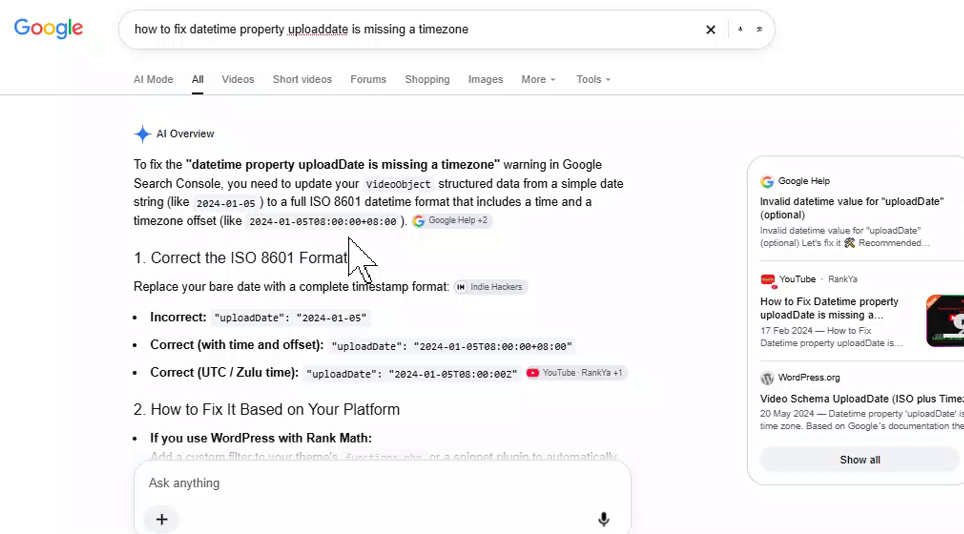
The AI Overview included a YouTube video among its cited sources.
There were two other details worth noting.
First, Google displayed an “Ask anything” box at the bottom of the answer, allowing the user to ask follow-up questions.
Second, the answer finished by asking which content management system and SEO plugin I was using. This would allow the response to be tailored to the website setup.
This is an interesting example of how Google’s AI Overviews are becoming more interactive. They are not simply presenting a summary and a list of links. They can also guide users through a problem using follow-up questions.
The Embedded Video Card
Towards the end of the AI Overview, Google introduced the video with the following explanation:
“Here is a video explaining how structured data upload dates and timezones work with Google Search Console.”
The video appeared as an embedded card containing:
- A thumbnail.
- Video length.
- Title.
- Number of views.
- How long ago it was published.
- Channel name.
Hovering over the thumbnail also played a preview.
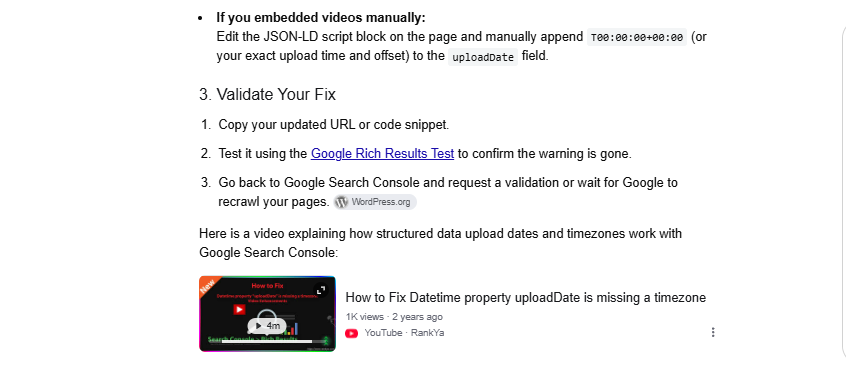
The video card appeared towards the end of the written answer.
What Happened When I Clicked the Video?
This is where things became particularly interesting.
Clicking the video card did not take me to YouTube.
Instead, the video opened in a viewer on Google.
The viewer included:
- A back arrow to return to the AI Overview.
- The channel name.
- The video’s publication date.
- A video player.
- A separate YouTube button in the top-right corner for anyone who wanted to leave Google.
The video also started at 0:36 of its total 5-minute-and-27-second duration.
That was the point where the speaker explained the missing timezone, which was exactly what I wanted to know.
In other words, Google did not simply open the video from the beginning. It took me directly to the section that answered my question.
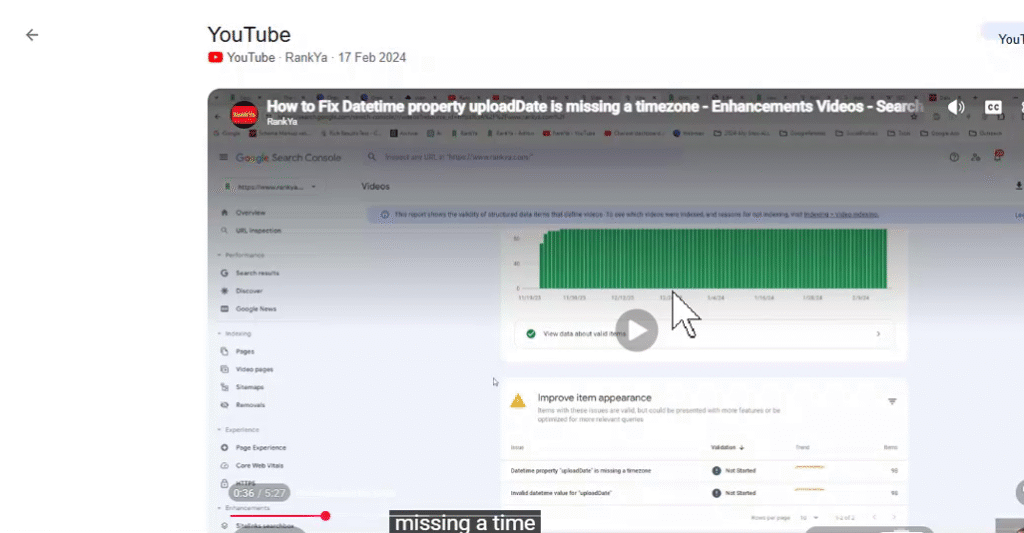
Google’s video viewer opened at the relevant moment in the video. The YouTube button appeared separately in the top-right corner.
Has Google Announced This Feature?
I haven’t found an official Google announcement describing this exact viewer behaviour.
However, it fits into a wider pattern of Google bringing more video content into AI Overviews.
YouTube began testing video carousels inside AI Overviews in 2025, initially for a limited group of Premium users.
BrightEdge data reported by Search Engine Land also placed YouTube among the most frequently cited domains in AI Overviews, with citations appearing in up to 29.5% of them.
My observation adds another detail to this development: Google may not just show a video as a source. It can also let users watch the relevant part without leaving its own search experience.
It’s important to distinguish what I observed from what Google has officially confirmed. This was an example from one search, not proof that every video in an AI Overview opens in the same way.
2. Why Does It Matter?
A video can become part of Google’s AI-generated answer, but the viewer may stay on Google.
This changes how businesses should approach video marketing.
The brand, the message and the next step need to work within the video itself, because viewers may never visit the YouTube channel or the company’s website.
The Click Doesn’t Necessarily Take the User to YouTube
A video card inside an AI Overview looks like a link that takes someone away from Google.
But in the example I tested, that wasn’t what happened.
The user watched the video inside Google’s viewer and could return to the AI Overview with one click.
This changes what the video creator gets from the interaction.
The viewer may never see:
- The YouTube channel page.
- Other videos on the channel.
- The subscription button.
- The end screen.
- Links in the video description.
- The company’s website.
The video still provides brand exposure, but the creator has less control over what happens after someone watches it.
YouTube generally counts plays in embedded players as views. However, Google has not clearly documented how plays inside this particular viewer are counted or reported in YouTube Analytics.
For that reason, I would not assume that every view in Google’s viewer can be identified separately.
The important point is that video views, channel visits and website traffic are no longer necessarily moving together.
| What the viewer does | What the creator gets | What the creator may miss out on |
|---|---|---|
| Reads the AI Overview and sees the video card | Brand exposure through the title, thumbnail and channel name | No video view or website visit yet |
| Plays the video inside Google’s viewer | A video play may count as a view, alongside exposure to the brand | The YouTube session, including other videos, subscriptions and end screens |
| Returns to the AI Overview | The video has helped answer the question | A visit to the website or YouTube channel |
| Selects the YouTube button | A full visit to YouTube | Nothing from that part of the journey, although not every viewer will choose to leave Google |
Google Takes the Viewer to the Moment That Answers the Question
One of the most interesting details in my test was where the video started.
Google opened it at 0:36, where the speaker explained the missing timezone.
It didn’t start at the beginning of the five-minute video.
This suggests that Google can identify a relevant section of a video and take the user directly to it. Captions and chapters may help make those sections easier to identify, although Google has not explained exactly how it selects the starting point in this viewer.
The practical lesson is simple.
Don’t make someone watch two minutes of introductions before getting to the answer.
A video about fixing a technical issue should explain the problem and show the solution as early as possible.
If your video takes too long to get to the point, or its captions contain mistakes in important product names and technical terms, you make it harder for search systems to identify the section that answers the question.
Your Brand Needs to Appear Inside the Video
When people watch a video inside Google’s viewer, they may never visit the channel page.
That means you have fewer opportunities to introduce your business through the usual YouTube features.
Your brand needs to be visible within the video itself.
For example:
- The presenter introduces themselves and the company.
- Your logo appears on screen.
- Your business name is mentioned naturally.
- Your products or services are shown being used.
- The video gives viewers a clear next step.
This is particularly important for businesses selling products or services where trust and recognition influence buying decisions.
A viewer might not visit your website immediately, but remembering your brand could lead to a branded search or a direct visit later.
Written Content and Video Can Both Appear in the Same AI Answer
The AI Overview I tested used information from Google’s help pages, Indie Hackers, WordPress.org and a YouTube video.
This is important because written content and video are not necessarily competing for the same space.
A business that has both a detailed written guide and a video explaining the same topic has two ways to appear in the answer.
For example, a software company could publish:
- A written guide explaining how to configure a particular feature.
- A video showing the process on screen.
- A dedicated video page containing the video, a summary and a transcript.
The written guide can help answer the question, while the video provides a practical demonstration.
Both formats give search engines more useful information to work with.
Measuring Video Visibility Is Becoming More Difficult
There is another problem for marketing teams.
Google Search Console does not show how many people watched your YouTube video inside an AI Overview.
YouTube Analytics provides video views and traffic source information, but it does not currently identify the exact AI Overview that generated each view.
This makes reporting more complicated.
A video could receive more views while the company’s website traffic and YouTube channel visits remain unchanged.
Unless you regularly check AI Overviews for your target questions, you may not even realise that your videos are being shown.
The same applies to competitors.
You could be losing visibility to a competitor’s video without noticing it in your normal organic ranking reports.
3. Who Is Affected?
This matters to any business whose customers search for practical information, particularly questions that start with phrases such as:
- How do I…?
- How to fix…
- How does this work?
- How do I use…?
- What’s the difference between…?
It is especially relevant to businesses that already produce tutorials, product demonstrations, technical videos and educational content.
Which Businesses Should Pay Attention?
| Business type | Searches where video is likely to appear | What changes |
|---|---|---|
| Software and SaaS | Setup instructions, troubleshooting and “how to fix” searches | Tutorials can appear in the answer, but users may stay on Google rather than visiting the help centre or product website |
| Ecommerce and retail | Product demonstrations, comparisons, assembly instructions and “how to use” searches | People can watch product demonstrations without visiting the product page |
| B2B manufacturers and suppliers | Installation, maintenance and product specification searches | Technical videos can build trust, but the video needs to encourage an enquiry or another useful action |
| Publishers and YouTube creators | Explainers, tutorials and product reviews | Video views may increase even if channel visits, subscriptions and time spent on the channel fall |
| Agencies and consultancies | How-to searches related to their areas of expertise | Expert videos can appear alongside Google’s own help pages and other authoritative sources |
| Healthcare, finance and other regulated industries | Explanations, procedures and educational content | Accuracy and the presenter’s qualifications become particularly important when a viewer sees only one section of a video |
Which Teams Need to Be Involved?
This is not just a video production task. It needs input from several teams.
- SEO: Identifies target searches where AI Overviews show videos and monitors which brands and websites are cited.
- Video and content: Plans, scripts and edits videos so that the answer appears early and the brand is visible.
- Marketing: Decides which customer questions deserve a video and what action viewers should take afterwards.
- Development: Creates dedicated video pages on the website, implements structured data and manages video sitemaps.
- Analytics: Reports video views and AI Overview appearances alongside website traffic and other marketing results.
4. What Should Businesses Do?
Businesses should create videos that answer specific questions clearly and early.
They should also make sure the brand is visible within the video, optimise the video for YouTube and create dedicated pages on their own websites for their most important videos.
The aim is to make your content useful in both traditional search and AI-generated answers.
Step 1: Find the Searches Where AI Overviews Show Videos
Start with the questions your customers regularly ask.
These might include:
- Product setup.
- Troubleshooting.
- How to use a product.
- Product comparisons.
- Installation instructions.
- Technical problems and fixes.
Search for each question in Google and record the following:
- Does an AI Overview appear?
- Does it include or cite a video?
- Which YouTube channel or website provides the video?
- Which written sources are cited alongside it?
Repeat the checks while logged out of Google and in a private browsing window.
AI Overviews can vary, so one search is not enough to establish a consistent pattern.
SD SEO Suite’s SERP checker can help teams review AI Overview results for target keywords, including the answer and the websites cited.
Use the results to prioritise searches where a video already appears or where showing the answer would be more useful than explaining it entirely through text.
Step 2: Create Videos That Answer One Question Quickly
My example shows why the first part of a video matters.
Google opened the video at the moment that answered the question. Businesses should make it easy for search engines and viewers to identify that moment.
I recommend the following approach:
Give each video one clear purpose
Create one video for one question. For longer videos, use separate chapters to answer individual questions.
Say the question out loud
Use the words customers actually search for.
For example, rather than starting with a general introduction, say:
“Today, I’ll show you how to fix the uploadDate timezone warning in Google Search Console.”
This makes the subject clear to viewers and gives search systems useful context.
Provide the answer within the first 30 to 60 seconds
Don’t spend the first minute introducing the company, discussing unrelated topics or explaining what you’re going to cover.
Get to the problem and the solution.
Show the answer on screen
Demonstrate the actual process wherever possible.
For a technical tutorial, show the settings, code or steps. For an ecommerce product, demonstrate the product in use rather than relying entirely on spoken explanations.
Make your brand visible
Have the presenter introduce the company, include the logo on screen and show the product or service where relevant.
Remember that viewers may never visit your YouTube channel.
Explain the next step
Give viewers a clear action to take.
For example:
- Search for your company and product name.
- Visit a specific page on your website.
- Use a free tool.
- Book a demonstration.
- Read the full guide.
Say the next step aloud rather than relying entirely on links in the description.
Keep videos up to date
The video card in my example displayed how long ago the video had been published.
If your software interface, product or instructions change, review the video and update or replace it where necessary.
Step 3: Optimise Every Video on YouTube
Publishing the video is only one part of the job. You also need to make sure its information is clear.
Title
Use the actual question or task that the video answers.
Avoid vague titles or brand slogans that don’t explain what the viewer will learn.
For example:
“How to Fix the uploadDate Missing Timezone Warning in Google Search Console“
is more useful than:
“Our Latest SEO Technical Tips”.
Description
Put a short explanation of the answer in the first two lines.
Then include the main steps covered in the video, followed by relevant links.
Chapters
Add timestamps to the video description.
YouTube’s chapter requirements include:
- The first timestamp must start at
0:00. - There must be at least three timestamps.
- Chapters must appear in chronological order.
- Each chapter must be at least 10 seconds long.
Give each chapter a descriptive title that explains what question it answers.
Captions
Upload an accurate transcript rather than relying entirely on automatic captions.
This is particularly important for:
- Product names.
- Brand names.
- Technical terms.
- Code.
- Industry-specific language.
Incorrect captions can make the content harder to understand and may affect how search systems identify the relevant parts of the video.
Google has not confirmed exactly how it selects the starting point in its AI Overview viewer, but accurate captions and clear chapters make the video easier to understand.
Thumbnail
Create a thumbnail that remains easy to read at the small size used in AI Overview video cards.
Don’t rely on small text or complicated designs.
Playlists
Group related videos into playlists.
Although some viewers will stay inside Google’s viewer, those who do visit YouTube should be able to find the next useful video.
Step 4: Give Your Most Important Videos Their Own Pages
A video hosted on YouTube can be cited as a YouTube source.
A video published on a dedicated page on your website gives your own domain another opportunity to appear in search results.
You can also include a written explanation alongside the video, creating another useful source for Google’s systems.
However, there is an important point about Google’s video indexing requirements.
Since 2023, Google has focused its video features and video thumbnails on pages where the video is the main content. Simply embedding a YouTube video halfway down an ordinary article does not automatically make that page eligible for video search features.
For your most important videos, build proper watch pages.
Each page should include:
- The video at the top: Watching the video should be the main purpose of the page.
- A written summary: Explain what the viewer will learn.
- The steps: Include the main instructions or information covered in the video.
- The transcript: Provide the full spoken content in text.
- VideoObject structured data: Include the required video information and relevant key moments.
- A video sitemap: Add the videos to a dedicated video sitemap or include the relevant video information in your existing sitemap.
Example VideoObject Structured Data
The following example shows how a dedicated video page could be marked up using VideoObject structured data.
It includes the video’s publication date with a timezone and uses Clip items to identify important sections.
{
  "@context": "https://schema.org",
  "@type": "VideoObject",
  "name": "How to fix 'uploadDate is missing a timezone'",
  "description": "Why Search Console shows the warning and how to fix it in WordPress or custom code.",
  "thumbnailUrl": "https://www.example.co.uk/images/uploaddate-fix.jpg",
  "uploadDate": "2024-02-17T09:00:00+00:00",
  "duration": "PT5M27S",
  "embedUrl": "https://www.youtube.com/embed/VIDEO_ID",
  "hasPart": [
    {
      "@type": "Clip",
      "name": "Why uploadDate needs a time zone",
      "startOffset": 36,
      "endOffset": 130,
      "url": "https://www.example.co.uk/videos/uploaddate-fix/?t=36"
    },
    {
      "@type": "Clip",
      "name": "Fixing it in WordPress",
      "startOffset": 130,
      "endOffset": 285,
      "url": "https://www.example.co.uk/videos/uploaddate-fix/?t=130"
    }
  ]
}
Fix the uploadDate Timezone Warning
One technical issue worth checking is the uploadDate property.
Google’s guidance is that uploadDate should show the date and time when the video was first published, using ISO 8601 format.
Google recommends including timezone information. Without it, Google may use the timezone of Googlebot.
This is why Search Console can report:
Datetime property uploadDate is missing a timezone
Here are some examples of how to correct the value.
| Current value | Corrected value | Explanation |
|---|---|---|
2024-02-17 | 2024-02-17T09:00:00+00:00 | Add the time and timezone offset |
2024-07-01T09:00:00 | 2024-07-01T09:00:00+01:00 | UK dates during British Summer Time use +01:00 |
17/02/2024 | 2024-02-17T09:00:00+00:00 | The original format is not ISO 8601 and may trigger an invalid datetime warning |
2024-02-17T09:00:00Z | No change needed | Z means UTC and is a valid timezone indicator |
The correct fix depends on where the structured data comes from.
If an SEO plugin generates the markup, check its video structured data settings and update the plugin where necessary.
If a theme or custom template generates the markup, fix the template so every video receives a complete date, time and timezone offset.
Once the change has been made, test a page using Google’s Rich Results Test and select Validate fix in the Videos report in Search Console.
The Python toolkit later in this article also includes a command for checking and correcting video dates and durations in bulk.
Step 5: Give Viewers a Reason to Remember Your Business
You should plan for the possibility that someone will watch your video in Google’s viewer and then return to the search results.
Your video still needs to create value for the business, even when the viewer doesn’t visit your website.
I would focus on four things.
Make your brand memorable
Use your company name and product names naturally in the video. Show the logo and make it clear who is providing the information.
This gives the viewer a better chance of remembering your business and searching for it later.
Give one clear next step
Mention a useful tool, guide or service.
For example:
“You can use our free checker at [your website address] to test your structured data.”
Keep it simple and easy to remember.
Publish the same answer on your website
Create a dedicated page containing the video and written explanation.
If someone searches for your brand or the same question again, they have another opportunity to find your website.
Create a series of related videos
Think about the questions a customer might ask after watching the first video.
For example, someone learning how to fix a structured data issue might then want to know how to test the markup or how to fix it in WordPress.
Create videos that answer those follow-up questions.
This is particularly useful as Google’s “Ask anything” feature allows users to continue exploring a topic through follow-up questions.
Step 6: Put the Work Into Your Business Processes
Video visibility in AI search needs to become part of the normal content and marketing process.
Here is how I would divide the work.
Video and Content Teams
- Build a list of questions from Search Console, sales conversations and customer support requests.
- Create one video or chapter for each specific question.
- Start each video with the question and provide the answer within the first minute.
- Show the company and product on screen.
- Upload accurate captions and add chapters to new and existing tutorials.
- Review older videos at least once a year.
- Replace or update videos when the instructions, product or software interface changes.
SEO Teams
- Check target searches for AI Overviews that include videos.
- Record which video channels and written sources are being cited.
- Write video titles and descriptions using the actual search questions.
- Plan a matching written guide for each important video.
- Make sure dedicated video pages are linked from relevant guides, product pages and help articles.
- Monitor the website’s video indexing and structured data reports.
Development Teams
- Build a dedicated video page template with the video at the top, followed by the summary, steps and transcript.
- Generate VideoObject structured data using the video’s actual information.
- Make sure
uploadDateincludes a complete date, time and timezone. - Output video duration in ISO 8601 format.
- Generate
Clipitems from the video chapters where appropriate. - Add videos to the XML sitemap or create a dedicated video sitemap.
- Check Google’s Video indexing report for pages where the video is not considered the main content.
- Make sure the video element is available for Google to process. A consent step or other interaction should not prevent Google from finding the video.
Marketing Teams
- Decide which customer questions deserve a dedicated video.
- Agree on the main action each video should encourage.
- Make sure videos support wider marketing and customer acquisition goals.
- Agree how YouTube views, AI Overview appearances and branded searches will be reported alongside website traffic.
Step 7: Measure Video Visibility in AI Search
Traditional video reports don’t tell the whole story anymore.
You need to understand where your videos appear, whether your website is cited alongside them and whether video exposure leads to more interest in your brand.
I would monitor the following:
| What to measure | Where to check | How often |
|---|---|---|
| AI Overviews for target searches that show or cite a video, including which video appears | SD SEO Suite’s SERP checker or manual Google searches | Monthly |
| Whether your website is cited in those AI Overviews | SD SEO Suite rank tracking, which records AI Overview citations | Weekly or daily |
| Views and traffic sources for cited videos | YouTube Studio, under Analytics and Traffic source. Review External and Google Search | Monthly |
| Indexed videos and structured data issues | Google Search Console Video indexing and Videos reports | Monthly |
| Branded searches and direct visits following video campaigns | Search Console Performance report and web analytics | Monthly |
One limitation is that YouTube does not currently identify the exact AI Overview that generated a particular view.
This means you need to check the target AI Overviews yourself if you want to connect video visibility with actual search results.
It is also worth monitoring the same customer questions across ChatGPT, Gemini, Perplexity and Claude. This gives you a broader view of where your videos and written content are being used in AI-generated answers.
Implementation Checklists
Use these checklists to make sure every team knows what needs to happen.
Video and Content
- List the target questions and assign one video or chapter to each.
- Answer the question within the first minute of every video or chapter.
- Show and mention the brand.
- Include one clear next step spoken aloud.
- Upload accurate captions.
- Add chapters to every relevant tutorial.
SEO
- Check target searches for AI Overviews that include videos.
- Record which videos and written sources are cited.
- Write video titles and descriptions around the actual search questions.
- Plan a written guide for each important video.
- Make sure dedicated video pages are linked from relevant guides and product pages.
Development
- Build a dedicated watch page template where the video is the main content.
- Generate VideoObject structured data with a complete
uploadDate. - Use ISO 8601 format for video duration.
- Add
Clipitems or other appropriate key moment markup. - Add videos to the sitemap.
- Run the Rich Results Test and validate fixes in Search Console.
Marketing and Analytics
- Decide on the main action each video should encourage.
- Report YouTube views alongside AI Overview appearances.
- Monitor branded searches and direct website visits.
- Review performance monthly.
Frequently Asked Questions
Why Didn’t Clicking the Video Take Me to YouTube?
In the AI Overview I tested, clicking the video opened Google’s own viewer.
The viewer included a back arrow to return to the AI Overview and a separate button to open YouTube.
This means the viewer can watch the video without leaving Google, unless they choose to select the YouTube button.
Does a View in Google’s Viewer Count as a YouTube View?
YouTube generally counts plays in embedded players as views. However, Google has not clearly explained how plays in this particular viewer are counted or whether they appear as a separate traffic source in YouTube Analytics.
Check the traffic sources for your videos in YouTube Studio rather than assuming every view can be attributed to an AI Overview.
Why Did the Video Start Part-Way Through?
In my example, the video started at 0:36.
This was the point where the speaker explained the missing timezone, which directly answered the search query.
Clear spoken explanations, accurate captions and well-organised chapters can make the relevant parts of a video easier to identify.
Google has not confirmed exactly how it selects these moments.
How Do I Fix “Datetime Property uploadDate Is Missing a Timezone“?
Add the time and timezone offset to the uploadDate property.
For example:
2024-02-17T09:00:00+00:00
For UK dates during British Summer Time, use +01:00.
Once the structured data has been corrected, test the page using Google’s Rich Results Test and validate the fix in Search Console.
Is the Missing Timezone Warning Serious?
It is a warning rather than necessarily an error that prevents the video from being indexed.
However, without timezone information, Google has to make assumptions about when the video was published.
Providing the correct date, time and timezone removes that uncertainty.
Should We Host Videos on YouTube or Our Own Website?
For important videos, I would use both.
YouTube is frequently cited in AI Overviews, making it an important platform for video visibility.
At the same time, creating dedicated video pages on your own website gives your domain another opportunity to appear in search results, alongside the written explanation.
You can also use the page to provide more information about your products, services and business.
Do We Need Key Moments Markup if Our YouTube Video Already Has Chapters?
For a video hosted on YouTube, adding chapters to the video description is useful.
For a dedicated video page on your own website, you can use Clip items or SeekToAction markup where appropriate to help Google understand important moments.
5. The Toolkit: video_seo_audit.py
I’ve also created a free Python script for SEO teams and developers that helps with the technical checks covered in Step 4.
It uses Python’s standard library, so there are no additional packages to install in most environments.
The script includes three commands.
schema
Checks the VideoObject structured data on your pages. It can work with website addresses, saved HTML files or a list of pages.
It checks the relevant properties against Google’s video structured data requirements and recommendations, including:
- Missing timezone information in
uploadDate. - Required and recommended video properties.
- Key moments markup.
fix
Generates the correct uploadDate and video duration for an individual video or an entire CSV file.
It also accounts for UK summer and winter time when using Europe/London.
chapters
Checks the chapters in a YouTube video description against YouTube’s requirements and generates matching Clip markup for your own video page.
How to Run the Script
Put the Python script in a folder, open Terminal on Mac or Command Prompt on Windows, and run the relevant command.
On Windows, use python instead of python3 if that’s how Python is configured on your system.
python3 video_seo_audit.py schema https://www.example.co.uk/videos/uploaddate-fix/

python3 video_seo_audit.py fix --date 2024-07-01 --time 09:00 --tz Europe/London --duration 5:27

python3 video_seo_audit.py chapters description.txt --duration 5:27 --url https://www.example.co.uk/videos/uploaddate-fix/
Example Script Output
The following example shows the output from a test page where the video structured data contains a date-only uploadDate and no key moments.
It then shows the corrected value for a video published during British Summer Time.
SCHEMA  1 page(s)

  video-page.html
    WARNING     How to fix the uploadDate warning: uploadDate: Datetime property is missing a timezone: '2024-02-17' has no time or time zone
    RECOMMENDED How to fix the uploadDate warning: no key moments: add Clip items (hasPart) or a SeekToAction

FIX
  uploadDate:  "2024-07-01T09:00:00+01:00"
  duration:    "PT5M27S"
On Windows, the --tz option may require the tzdata package.
You can install it using:
pip install tzdataAlternatively, use a fixed offset with --offset +01:00 or --offset +00:00 when you know which offset is correct for the date being processed.
6. What We’re Watching Next
AI Overviews are becoming a place where people can watch videos as well as read answers.
There are several questions that will help determine how much value businesses and video creators can get from this change.
Will Videos Hosted on Business Websites Open in Google’s Viewer Too?
One of the next things I’m interested in testing is whether videos hosted directly on business websites receive the same treatment as YouTube videos.
If they do, dedicated video pages may lose some of the advantage of keeping people on the website.
This is something worth investigating rather than assuming that every video source behaves in the same way.
Will YouTube Analytics Report AI Overview Views Separately?
At the moment, there is no clear way to connect an individual YouTube view to the exact AI Overview that generated it.
Separate reporting would make it much easier for businesses to understand the value of their video visibility in AI search.
Will Videos Appear in Follow-Up Questions?
The “Ask anything” box turns an AI Overview into a conversation.
A user might start by asking how to fix a problem, then ask which tool to use or how to prevent it from happening again.
Videos answering the second and third questions could become just as important as those answering the original search.
Will Google Publish More Guidance About AI Overview Videos?
Google has not fully explained how its viewer works or how it selects the starting point in a video.
More information about captions, chapters and key moments could change how businesses prioritise video optimisation.
Will Search Console Provide More Video Data for AI Features?
Google’s generative AI performance reporting can show pages appearing in AI Overviews and AI Mode, but it does not currently provide equivalent video-level performance data for YouTube videos.
More detailed reporting would help businesses understand which videos are being used and how often they appear.
Will Ads Compete With Organic Video Answers?
Ads already appear in and around AI Overviews.
If advertising placements become more common alongside video answers, organic videos and paid placements could compete for the same viewer attention.
This is another area worth monitoring as Google’s AI search features develop.
7. About Szymaniak Digital
Szymaniak Digital is a UK-based Enterprise AI SEO Consultancy led by Konrad Szymaniak.
We help businesses improve their visibility across Google AI Overviews, AI Mode and AI assistants through SEO, content, video, structured data and technical optimisation.
We also help marketing teams understand what that visibility means for their wider business, including customer acquisition, brand awareness and revenue.
Our SD SEO Suite helps teams monitor AI search visibility. Its SERP checker shows the AI Overview answer and the websites it cites for target searches, while its rank tracking records AI Overview citations over time.
For businesses investing in video, the opportunity is no longer limited to getting more YouTube views.
The bigger question is whether your videos are helping your brand appear when customers search for answers, compare products or look for solutions.
A video that answers the right question can put your business in front of a potential customer. The challenge is making sure they remember your brand, understand what you offer and know what to do next.
