
Have you received an email from Google Search Console saying “New reason preventing your pages from being indexed”, with the reason listed as “Indexed, though blocked by robots.txt”?
It’s a common message, but it can be confusing, particularly when Google says a page is indexed even though your robots.txt file tells it not to crawl the URL.
The important thing to understand is that crawling and indexing are two different things.
Your robots.txt file tells Google which URLs it can crawl. It doesn’t guarantee that a blocked URL will stay out of Google’s index. If Google finds a link to the URL elsewhere, it may still know that the URL exists and include it in search results, even though it can’t read the page.
In many cases, this isn’t a problem. For example, WooCommerce add-to-cart URLs are blocked by default, and that’s generally the right approach.
However, if Google has indexed a product page, category page or article that you actually want people to find, you need to investigate.
In this guide, I’ll explain what the warning means, which URLs you should leave blocked, and how to deal with the different types of URLs across WordPress, WooCommerce and Shopify websites.
1. What Does “Indexed, Though Blocked by robots.txt” Mean?
Google has found a URL and added it to its index, but your robots.txt file tells Googlebot not to crawl it.
Google can discover URLs through links on your website, links from other websites and other sources. It doesn’t always need to visit a page to know that the URL exists.
If the URL is blocked by robots.txt, Google can’t crawl the page to read its content. It may still index the URL using information from other pages that link to it.
This is why you can see a URL listed as indexed even though robots.txt blocks it.
Crawling and indexing are not the same thing
Before changing anything, it’s important to understand what each instruction does.
| Control | What it does | What it doesn’t do |
|---|---|---|
robots.txt Disallow | Tells Google not to crawl a URL or section of your website. | Doesn’t guarantee that the URL will stay out of Google’s index. |
noindex meta tag or X-Robots-Tag header | Tells Google not to include a page or file in its search results. | Only works when Google can crawl the URL and read the instruction. |
| Login or password protection | Prevents people and search engines without access from viewing private content. | Doesn’t automatically remove a URL that’s already appearing in search results. |
The most important distinction is between robots.txt and noindex.
Robots.txt controls crawling. Noindex controls indexing.
You cannot reliably use both on the same URL to keep it out of Google’s index. When robots.txt blocks the page, Google cannot crawl it to see the noindex instruction.
For example, suppose you have a page at:
https://www.example.com/cartYour robots.txt file contains:
Disallow: /cart/You then add a noindex tag to the cart page.
The problem is that Google cannot crawl the page to see the noindex tag. The instruction has no effect while the URL remains blocked.
If you want Google to remove that page from its index, you need to allow Google to crawl it and read the noindex instruction.
There are exceptions, particularly for action URLs such as WooCommerce add-to-cart links. I’ll explain those later.
Two similar Search Console messages mean different things
Search Console can show two statuses that look similar, but they don’t mean the same thing.
| Search Console status | What it means | Is it usually a problem? |
|---|---|---|
| Blocked by robots.txt | Google cannot crawl the URL, and it isn’t currently indexed. | No, provided you intended to block it. |
| Indexed, though blocked by robots.txt | Google knows about the URL and has indexed it, but cannot crawl the page. | It depends on the URL. |
The second status is a warning that needs checking, not an instruction to remove every robots.txt rule.
Because Google cannot read the blocked page, any search result for that URL may have very limited information. Google may know the URL exists, but it cannot use the page’s content in the normal way.
The most common example: WooCommerce add-to-cart URLs
One of the most common reasons I see this warning on ecommerce websites is WooCommerce add-to-cart URLs.
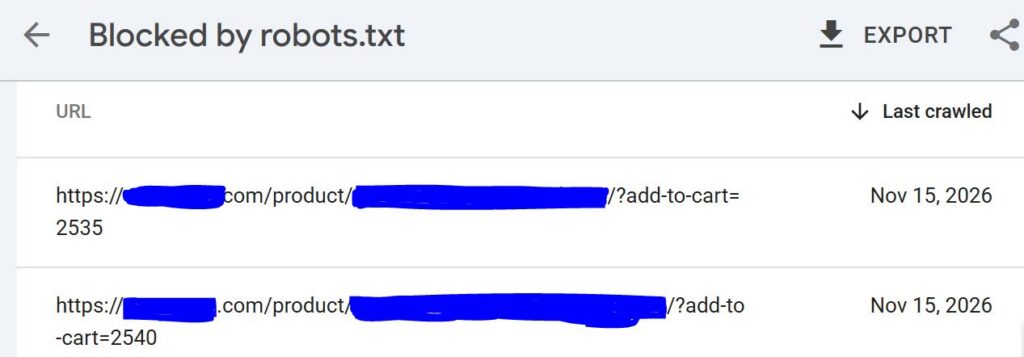
They often look like this:
https://www.example.com/product/oak-dining-table/?add-to-cart=2535

https://www.example.com/product/oak-dining-table/?add-to-cart=2540
These aren’t separate product pages. They’re action URLs. When someone visits one, WooCommerce adds the relevant product to their basket.
WooCommerce includes robots.txt rules to block these URLs:
Disallow: /*?add-to-cart=
Disallow: /*?*add-to-cart=
The first rule covers URLs where add-to-cart is the first query parameter. The second covers URLs where it appears after another parameter.
This is intentional. Google doesn’t need to crawl every version of a product URL that triggers an add-to-cart action.
So, if these URLs appear under “Indexed, though blocked by robots.txt”, it doesn’t automatically mean something is wrong with your store.
Google’s John Mueller addressed this exact issue in June 2026. His advice was that add-to-cart URLs don’t need to be indexed and that blocking them with robots.txt is fine. He also said they are unlikely to appear in normal search results.
My recommendation: leave WooCommerce add-to-cart URLs blocked. Don’t remove the rules just to make the Search Console report look cleaner.
Other URLs that can trigger this warning
The issue isn’t limited to WooCommerce.
You might also find the following URL types in your report:
| URL type | Example | Typical action |
|---|---|---|
| Cart and basket pages | /cart/, /basket/ | Usually noindex if you want them out of Google. |
| Checkout pages | /checkout/ | Usually noindex if you want them out of Google. |
| Account pages | /my-account/, /account/ | Usually noindex or require login, depending on the content. |
| Internal search results | /?s=oak, /search?q=oak | Usually noindex. |
| Filter and sort URLs | ?colour=oak, ?sort=price | Review individually; many can be blocked or canonicalised. |
| Tracking parameters | ?utm_source=..., ?gclid=... | Check how your site handles them and avoid creating unnecessary indexable URLs. |
| Admin and login pages | /wp-admin/, /login/ | Protect with login rather than relying on robots.txt. |
| Staging environments | /staging/, /dev/ | Require authentication or restrict access. |
| Tags, print pages and feeds | /tag/, /print/, /feed/ | Review whether they need to appear in search. |
| Main content pages | Product, category, service and article URLs | Investigate immediately if they should be indexed. |
The last group is particularly important.
If Google has indexed a product page, category page or article but cannot crawl it, you could have a genuine SEO problem.
2. Why Does This Matter for SEO?
The impact depends on which URLs are affected.
If the report contains add-to-cart links that are intentionally blocked, there’s usually nothing to fix.
However, if Google can’t crawl pages that should appear in search results, you’re limiting its ability to understand and rank your content.
The risk depends on the type of URL
| Type of URL | Risk | Why |
|---|---|---|
| Add-to-cart and other action URLs | Low | These URLs trigger an action rather than provide a useful page. Keeping them blocked can prevent unnecessary crawling. |
| Cart, checkout and account pages | Low to moderate | They rarely need to appear in search, but can create untidy results if indexed. |
| Internal search, filter and sort URLs | Moderate | They can create large numbers of similar or low-value URLs, some of which may appear in search. |
| Staging, admin and private pages | High | A robots.txt file doesn’t protect private information. A blocked URL may still be discovered and indexed. |
| Real content pages | High | Google can’t read the content, titles or structured data normally, which can affect how the page appears in search. |
What happens when important pages are blocked?
There are several potential problems.
1. Your Google search listings may look incomplete
Google cannot read the page’s title, description and content in the normal way.
The URL could still appear in search, but with limited information. That gives users less reason to click.
2. Google can’t properly assess the page
If Google cannot crawl a product, category or service page, it cannot evaluate the content in the usual way.
It may know that the URL exists, but it cannot assess the information on the page as it would for a crawlable URL.
3. Structured data and rich results may be affected
Google needs to crawl a page to read its structured data.
If a product page is blocked, Google cannot access the Product, Offer or other markup on that page. This can affect eligibility for relevant search features.
4. Your AI search visibility may also be affected
There have been industry discussions about blocked URLs appearing in AI-generated answers, including AI Overviews.
However, seeing a blocked URL mentioned doesn’t mean Google has crawled and understood the page itself. It may have found the URL or information about it elsewhere.
My advice is straightforward: don’t block important content pages that you want search engines to understand and use as sources.
Why unblocking every URL is also a bad idea
When you see a warning in Search Console, it’s tempting to remove the relevant Disallow rules to clear the report.
I wouldn’t recommend doing that without checking the URLs first.
Your website may generate thousands of URLs for actions, filters, sorting and other functions. Allowing Google to crawl all of them can waste server resources and reduce the time available for discovering important pages.
Google has highlighted this problem.
In February 2026, Google reported that action parameters accounted for about 25% of the crawling issues its team reviewed during 2025. Faceted navigation accounted for roughly half.
These URL patterns can create large numbers of unnecessary crawl requests.
For ecommerce websites, this is particularly relevant. A product category with several filters and sorting options can generate many URL variations, even when the underlying products are the same.
The goal isn’t to remove every warning from Search Console.
The goal is to make sure Google can crawl the pages that matter and avoid wasting resources on URLs that don’t need to be crawled.
3. Which Websites and Platforms Are Affected?
Any website using robots.txt can receive this warning.
However, I see it as a particular concern for ecommerce websites, large websites that generate URL parameters, and businesses that have recently migrated or changed their website structure.
Common issues by industry
| Industry | URLs that commonly cause problems |
|---|---|
| Ecommerce | Add-to-cart actions, wishlists, cart and checkout pages, product filters and sorting parameters. |
| Publishers and blogs | Internal search results, tag archives, print versions, alternative page versions and feeds. |
| SaaS and B2B | Login pages, applications, trial sign-ups, thank-you pages and gated resources. |
| Travel, property and classifieds | Search results with multiple filters, map views and saved-search URLs. |
| Healthcare and finance | Patient or customer portals, application forms and private documents. |
| Websites after a migration | Product, category, service and article pages blocked by rules copied from a staging website or an old robots.txt file. |
Common issues by platform
Different platforms handle robots.txt in different ways, so the fix depends on how your website is built.
| Platform | Common URLs involved | Can you edit robots.txt? |
|---|---|---|
| WooCommerce (WordPress) | ?add-to-cart= URLs, internal search and account pages. | Yes. Through an SEO plugin, a physical file or the WordPress robots_txt filter. |
| Shopify | Cart, checkout, account, internal search and collection filter URLs. | Yes. By adding a robots.txt.liquid template to the theme. |
| WordPress | Internal search, admin paths and plugin-generated parameters. | Yes. Through a plugin, a physical file or code. |
| Magento / Adobe Commerce | Cart, checkout, layered navigation and sorting parameters. | Yes. Through the platform and server configuration. |
| BigCommerce | Cart, checkout and product filter URLs. | Yes. Through the platform’s available settings and configuration. |
| Wix and Squarespace | System pages, search and platform-generated URLs. | Editing options are more limited. Check the platform’s settings. |
| Headless and custom websites | Any URL or route blocked during development. | Yes. Usually through the codebase, server or CDN. |
A note for Shopify stores
Shopify blocks several URLs by default, including cart, checkout and account pages.
It also blocks certain collection filter and sorting URLs to reduce unnecessary crawling.
This is generally sensible. These pages often contain customer-specific information or produce variations of existing pages.
A Google Product Expert has also discussed this exact Search Console warning in the Google Search Central community, describing a blocked cart URL as nothing to worry about in normal circumstances.
However, if you specifically want Google to remove a cart page from its index using noindex, you need to make sure Google can crawl the page and read the instruction.
Shopify allows you to customise robots.txt through a robots.txt.liquid template, but it warns that incorrect changes can affect your store’s crawling and organic traffic.
I would only change Shopify’s default rules when there is a clear reason, and I would test the changes on a preview theme first.
4. How to Fix “Indexed, Though Blocked by robots.txt”
Don’t try to clear the Search Console report without understanding which URLs are affected.
Start by exporting the URLs, grouping them by type and deciding what should happen to each group.
There are four possible outcomes:
- Crawl and index: Google should be able to access the page and include it in search results.
- Crawl but don’t index: Google should be able to read the page, but a noindex instruction should keep it out of search.
- Don’t crawl: Google shouldn’t waste time accessing the URL, usually because it triggers an action or creates unnecessary URL variations.
- Keep private: The URL should require a login or password.
The important thing is to use the correct method for each type of URL.
Who should be responsible?
This is usually a joint task between SEO, content and development.
| Team | Responsibility | What they should deliver |
|---|---|---|
| Marketing and SEO | Export the affected URLs, group them and decide what should happen to each type. | A list of URLs with an agreed action for each group. |
| Development | Change robots.txt, add noindex tags or headers, protect private areas and remove unnecessary links to action URLs. | Tested robots.txt rules and template changes. |
| Content | Confirm which pages should appear in Google and review links to utility and action URLs. | An approved list of important pages that should be indexed. |
Step 1: Export and organise the affected URLs
Owner: Marketing and SEO
Start in Google Search Console.
- Open the relevant property.
- Go to Indexing → Pages.
- Open the Indexed, though blocked by robots.txt issue.
- Export the example URLs as a CSV file.
- For context, also export the URLs listed under Blocked by robots.txt.
Google currently provides up to 1,000 example URLs per issue. This means the export may not contain every affected URL on a large website.
I recommend grouping the URLs into the following five categories.
| Group | Examples | Recommended action |
|---|---|---|
| A. Action URLs | ?add-to-cart=2535 | Leave blocked by robots.txt. |
| B. Utility pages | /cart/, /checkout/, ?s=oak | Add noindex, then allow Google to crawl the page. |
| C. Parameter URLs | ?orderby=price, ?filter_colour=oak | Review individually. Block large groups where appropriate; consider canonical or noindex for smaller groups. |
| D. Private areas | /wp-admin/, staging sites and private portals | Require a login or password. |
| E. Real content pages | Products, categories, articles and landing pages | Remove the blocking rule and allow Google to crawl and index them. |
For a large export, you can use a small Python script to group the URLs automatically.
The following example looks for common URL patterns and assigns each URL to a group. You can change the rules to suit your website.
import csv
import re
import sys
from collections import Counter

RULES = [
    # First matching rule wins. Adjust for your website.
    (
        r"[?&](add-to-cart|add_to_cart|add-to-wishlist|add_to_wishlist)=",
        "A. Leave blocked (action URL)"
    ),
    (
        r"/(cart|basket|checkout|my-account|account|wishlist)(/|$|\?)",
        "B. Noindex + unblock (utility page)"
    ),
    (
        r"([?&](s|q|search)=|/search(/|$|\?))",
        "B. Noindex + unblock (internal search)"
    ),
    (
        r"[?&](sort|orderby|filter_[a-z_]+|colour|color|size|utm_[a-z]+|gclid|fbclid)=",
        "C. Review (parameter URL)"
    ),
    (
        r"/(wp-admin|admin|login|staging|dev)(/|$)",
        "D. Protect with login (private)"
    ),
]

DEFAULT = "E. Check: real page blocked by mistake?"

def group(url):
    return next(
        (
            name for pattern, name in RULES
            if re.search(pattern, url, re.I)
        ),
        DEFAULT
    )

with open(sys.argv[1], encoding="utf-8-sig", newline="") as source:
    rows = list(csv.DictReader(source))

if not rows:
    raise SystemExit("The CSV file contains no URL rows.")

column = next(
    (
        name for name in rows[0]
        if name.strip().lower() in ("url", "urls", "page")
    ),
    None
)

if column is None:
    raise SystemExit("Could not find a URL, URLs or Page column.")

counts = Counter()

with open(sys.argv[2], "w", newline="", encoding="utf-8") as output:
    writer = csv.writer(output)
    writer.writerow(["URL", "Action"])

    for row in rows:
        url = row.get(column, "").strip()

        if not url:
            continue

        action = group(url)
        writer.writerow([url, action])
        counts[action] += 1

for name, number in sorted(counts.items()):
    print(f"{number:>5}  {name}")
Run it with:
python3 triage.py export.csv sorted.csvThe script creates a new CSV with each URL and its suggested action.
Important: This is a starting point, not an automatic fix. Review the results before changing your robots.txt file. A parameter can be important on one website and unnecessary on another.
You can also do the same thing in Excel or Google Sheets by filtering for terms such as add-to-cart, cart, checkout, ?s= and filter_.
Step 2: Decide what should happen to each URL group
Once you’ve grouped the URLs, agree the correct action with your development team.
| Group | Example | Should Google crawl it? | Should Google index it? | What to do |
|---|---|---|---|---|
| A. Action URLs | ?add-to-cart=2535 | No | No | Keep the robots.txt block. |
| B. Utility pages | /cart/, /checkout/, ?s=oak | Yes | No | Add noindex first, then remove the matching Disallow rule. |
| C. Parameter URLs | ?orderby=price, ?filter_colour=oak | Usually no for large groups | Usually no | Keep blocked where appropriate. For smaller groups, review canonical or noindex options. |
| D. Private areas | /wp-admin/, staging and portals | No public crawling | No | Require a login or password. |
| E. Real content | Products, categories and articles | Yes | Yes | Remove the Disallow rule and request a recrawl. |
The following steps explain how to deal with each group.
Step 3: Keep action URLs blocked
Owner: Development team
For WooCommerce add-to-cart URLs and similar action URLs, the robots.txt block is usually correct.
Google’s Gary Illyes has advised site owners to block action URLs. John Mueller also confirmed in June 2026 that blocking WooCommerce add-to-cart URLs is fine.
WooCommerce includes these rules in its robots.txt output by default:
Disallow: /*?add-to-cart=
Disallow: /*?*add-to-cart=
What should you do?
1. Keep WooCommerce updated.
Google’s crawling team has previously raised issues with WooCommerce about add-to-cart URLs creating unnecessary crawling. WooCommerce released a fix.
Keeping the platform updated helps make sure you’re using the current version of its default behaviour.
2. Check that the robots.txt rules are still there.
Visit:
https://www.yourdomain.com/robots.txtLook for:
Disallow: /*?add-to-cart=
Disallow: /*?*add-to-cart=
An SEO plugin, custom robots.txt file or theme change may have replaced or removed the default rules.
3. Reduce unnecessary links to action URLs.
Crawl the website with a tool such as Screaming Frog and look for internal links containing add-to-cart=.
Check whether your theme or page builder has changed how add-to-basket buttons work. Avoid placing unnecessary add-to-cart links in your main content, menus or other areas where search engines might discover them.
4. Don’t request validation for these URLs.
The URLs are blocked deliberately. You don’t need to remove the rule simply because Search Console reports them.
Step 4: Add noindex to utility pages, then allow Google to crawl them
Owner: Development team
This is the fix people often mean when they search for help with the warning.
Suppose you don’t want your cart, checkout or internal search pages appearing in Google.
You need to add a noindex instruction and then remove the robots.txt rule that blocks Google from accessing the relevant page.
The order matters:
- Add the noindex instruction.
- Check that it appears on the live page.
- Remove the matching Disallow rule from robots.txt.
- Allow Google to recrawl the page and see the noindex instruction.
Don’t remove the Disallow rule first and leave the page without noindex. That could make a utility page crawlable and eligible for indexing.
WordPress and WooCommerce
First, check your SEO plugin settings. Many WordPress SEO plugins allow you to noindex internal search results and utility pages without adding custom code.
If you need to handle this through WordPress, the wp_robots filter can add the noindex instruction.
For example:
add_filter( 'wp_robots', function ( $robots ) {

    $is_shop_utility = function_exists( 'is_cart' ) &&
        ( is_cart() || is_checkout() || is_account_page() );

    if ( is_search() || $is_shop_utility ) {
        $robots['noindex'] = true;
        $robots['follow']  = true;
    }

    return $robots;
} );
This example applies noindex to internal search results, the cart, checkout and account pages.
Once you’ve confirmed that the tag appears correctly, remove the matching Disallow rules from robots.txt, such as:
Disallow: /cart/
Disallow: /checkout/
Disallow: /my-account/
Don’t remove the WooCommerce add-to-cart rules.
Shopify
Shopify allows you to customise robots.txt through a robots.txt.liquid template.
First, you can add a noindex tag to the relevant templates in your theme’s theme.liquid file, inside the <head> section.
For example:
{%- if template contains 'search' or template contains 'cart' -%}
  <meta name="robots" content="noindex, follow">
{%- endif -%}
Next, you need to change the relevant robots.txt rule so Google can crawl the page and read the noindex tag.
Shopify’s default rules are generated automatically. When you create a custom robots.txt.liquid template, you replace the default output, so it’s important to preserve the rules you still need.
The following example keeps Shopify’s default rules but removes an exact Disallow rule for /cart or /cart/:
{% for group in robots.default_groups %}
  {{- group.user_agent }}

  {%- for rule in group.rules -%}
    {% assign is_cart_rule = false %}

    {% if rule.directive == 'Disallow' %}
      {% if rule.value == '/cart' or rule.value == '/cart/' %}
        {% assign is_cart_rule = true %}
      {% endif %}
    {% endif %}

    {% unless is_cart_rule %}
      {{ rule }}
    {% endunless %}
  {%- endfor -%}

  {%- if group.sitemap != blank %}
    {{ group.sitemap }}
  {%- endif %}
{% endfor %}
Before using this, check the exact rules in your store’s live robots.txt file. Only remove the rule you intend to replace with noindex.
Shopify warns that incorrect robots.txt changes can affect crawling across the whole store. I would test this on a preview theme and ask a developer to review it before publishing.
For many Shopify stores, leaving the default cart block in place is perfectly reasonable. You don’t need to change it simply to remove a Search Console warning.
PDFs and other non-HTML files
If you need to keep a PDF, image or other supported file out of Google’s index, you can use an X-Robots-Tag HTTP response header.
For example:
X-Robots-Tag: noindexThe file must be accessible to Google so it can read the header. If robots.txt blocks the file, Google won’t be able to see the instruction.
Step 5: Protect private pages with a login
Owner: Development team
If a URL contains private information, robots.txt and noindex aren’t enough.
Your robots.txt file is publicly accessible. Anyone can view it, and a Disallow rule doesn’t prevent people from visiting the URL.
For example, if your website has:
- A staging environment.
- A private customer portal.
- Internal business documents.
- Private application pages.
- Admin areas.
Require users to log in before they can access the content.
If a private URL is already appearing in Google and needs to disappear quickly, you can use the Removals tool in Search Console for a temporary removal while you put the permanent protection in place.
Don’t rely on robots.txt to protect confidential information.
Step 6: Unblock real pages that should appear in Google
Owner: Development team, followed by Marketing and SEO
This is the group that needs the most attention.
If a product, category, service or article page should be indexed, but robots.txt blocks it, you need to remove or narrow the rule.
Follow these steps.
1. Find the rule that’s blocking the page.
In Search Console, open the robots.txt report under Settings. Review the robots.txt file Google has found and check for errors.
You can also test the URL against the relevant robots.txt rules.
2. Remove or narrow the rule.
Ask your developer to change the rule so it no longer blocks the important page.
Be careful with broad rules.
For example:
Disallow: /pThis can block every URL beginning with /p, not just one specific page.
Always check which URLs a rule affects before changing it.
3. Request a recrawl of robots.txt.
After updating the file, you can use Search Console’s robots.txt report to request that Google recrawls it.
This can help Google discover the new rules sooner, but it doesn’t guarantee that every unblocked page will be crawled immediately.
4. Test the important pages.
Use the URL Inspection tool’s live test to check that Google can access the page.
For your most important URLs, use the Request indexing option once the page is accessible and ready.
5. Monitor performance.
Track impressions, clicks and rankings for the affected pages over the following 90 days.
The aim is to confirm that Google can crawl the pages and that their search visibility is moving in the right direction.
Step 7: Validate the fixes and monitor the report
Owner: Marketing and SEO
Once you’ve made the changes, go back to the Page indexing report.
Don’t validate every issue automatically. Only validate the groups you have actually fixed.
When all the affected URLs in a group have been addressed, open the issue and select Validate fix.
There are a few things to remember:
- Google needs to recrawl the affected URLs before it can confirm the changes.
- Validation typically takes around two weeks, but it can take longer.
- If Google finds one remaining example of the issue, validation can fail.
- You don’t need to click Validate fix repeatedly while a validation is already running.
- Google can also update the number of affected URLs through its normal crawling, even if you don’t request validation.
For large websites, you can make the process more manageable by submitting a sitemap containing only the important URLs. Filter the Page indexing report by that sitemap and validate the relevant group.
This can help keep the validation work focused on the pages you actually care about.
Don’t worry if a URL remains in the report for a while. Google needs to recrawl it and process the new instructions before the status changes.
5. Implementation Checklist
Use this checklist when working through the report with your SEO and development teams.
Before making changes
- Export the affected URLs from Search Console.
- Review both “Indexed, though blocked by robots.txt” and “Blocked by robots.txt”.
- Group the URLs into action, utility, parameter, private and real content pages.
- Agree what should be crawled and what should be indexed.
- Identify which rules in robots.txt affect the URLs.
When fixing the URLs
- Leave WooCommerce add-to-cart and wishlist action URLs blocked where appropriate.
- Check that the WooCommerce default add-to-cart rules are still present.
- Find unnecessary internal links to action URLs.
- For utility pages, add noindex first and then remove the matching Disallow rule.
- Keep unnecessary filter and parameter URLs under control.
- Protect staging sites, portals and private documents with a login.
- Unblock real content pages that should be indexed.
- Check that the updated robots.txt file contains all the rules you still need.
After making changes
- Test important URLs using Search Console’s URL Inspection tool.
- Request a recrawl of robots.txt where appropriate.
- Request indexing for important pages that were previously blocked.
- Validate only the groups that have actually been fixed.
- Use a focused sitemap where it helps.
- Review the Page indexing report monthly and after significant robots.txt changes.
6. What We’re Watching Next
Google is paying more attention to how websites manage crawling, particularly as websites generate more URLs and new AI crawlers become more common.
There are several areas I expect SEO teams to keep an eye on.
More attention on unnecessary crawling
Google’s crawling team has started raising issues with website platforms and plugins that generate large numbers of unnecessary URLs.
WooCommerce is one example. Action parameters can create URLs that don’t provide any additional value in search.
I expect website platforms to continue reviewing their default robots.txt rules and making changes to reduce unnecessary crawling.
More Search Console notification emails
Search Console sends indexing notifications to website owners, many of whom aren’t technical SEO specialists.
The “Indexed, though blocked by robots.txt” message can easily be misunderstood, particularly when it appears alongside a warning about pages that can’t be indexed.
Businesses need a simple process for deciding which URLs matter and which warnings can be safely left alone.
Managing AI crawlers without blocking Google Search
More websites are using robots.txt to control access from AI crawlers.
That’s a separate decision from managing Googlebot.
When adding rules for AI crawlers, check that you haven’t accidentally blocked Googlebot from important pages you still want to appear in traditional Search and Google’s AI features.
Blocked pages and AI answers
There have been examples shared by industry commentators of blocked URLs appearing in AI Overviews with limited information.
This is another reason to be careful about blocking content you want search engines to understand.
A search engine may discover a URL without being able to read its contents. That isn’t a good position if you want the page to represent your business accurately.
Faceted navigation will remain an important issue
Filters and sorting can create a huge number of URLs on ecommerce websites.
Google has published guidance recommending that websites control faceted navigation carefully, particularly where filter combinations create large numbers of pages with little additional value.
For ecommerce teams, robots.txt, canonical tags and noindex all have different jobs. The right approach depends on whether you want Google to crawl the filtered URL, consolidate it with another page or keep it out of the index.
7. About Szymaniak Digital
Szymaniak Digital is an Enterprise AI SEO Consultancy led by Konrad Szymaniak.
We help businesses understand how Google crawls, indexes and displays their websites, and how technical SEO decisions affect organic and AI search visibility.
Our technical SEO work includes robots.txt reviews, indexing audits, crawl analysis and platform-specific fixes across large, enterprise websites and ecommerce stores.
If Search Console has sent you an “Indexed, though blocked by robots.txt” notification, or your indexing report has increased after a migration, redesign or plugin change, the first step is to identify which URLs are actually affected.
Some warnings are harmless. Others can prevent important pages from appearing properly in Google.
The right fix depends on the URL, not the warning itself.
