
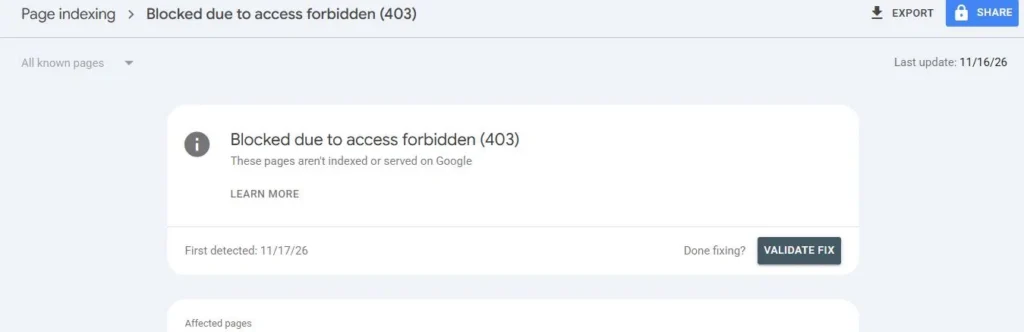
Have you received an email from Google Search Console saying “New reason preventing your pages from being indexed”, with the reason listed as “Blocked due to access forbidden (403)”?
It’s worth checking, but it doesn’t necessarily mean something is wrong with your website.
A 403 error means your server has refused a request. When Googlebot receives this response, it can’t access the URL, so Google won’t index that page.
Sometimes this is exactly what you want. For example, a WordPress website might return a 403 when someone tries to access the /wp-content/plugins/ folder directly. That’s a sensible security measure because visitors don’t need to browse your plugins folder.
However, a 403 on a product page, category page or important article is a different matter. It could mean your firewall, security plugin or hosting provider is blocking Googlebot from accessing content that should appear in search.
The important thing is to understand which URLs are affected before changing anything.
In this guide, I’ll explain how to check the URLs, identify what’s blocking Google and fix the problem without weakening your website’s security.
1. What Does “Blocked Due to Access Forbidden (403)” Mean?
A 403 is an HTTP status code. It means the server understood the request but refused to provide the requested content.
For SEO, this matters because Googlebot needs to access a page to crawl and index it.
When Google tries to visit a URL and receives a 403 response, it can’t read the page. Search Console then reports the URL under the relevant Page indexing issue.
Google’s documentation explains that Googlebot doesn’t provide login credentials. So, when it receives a 403, the server is refusing its request rather than allowing it to read the page.
How to read the Search Console report
When Google detects this problem, it may send an email with the subject:
New reason preventing your pages from being indexed
Open Google Search Console and go to:
Indexing → Pages → Blocked due to access forbidden (403)
The report shows example URLs affected by the issue and the date Google last crawled each one.
The examples are the most important part of the report. Don’t assume that every URL needs fixing. Look at what Google is trying to access.
For example, if the only URL listed is:
https://www.example.com/wp-content/pluginsyou may not have a problem at all.
However, if Search Console lists URLs such as:
/products/oak-dining-table//services/private-dentistry//blog/how-to-choose-a-home-care-provider/
you need to investigate. These are pages that a business would normally want Google to crawl.
My recommendation is to check the actual URLs before asking your developer to change anything. A 403 can be a sensible security measure or a serious SEO problem, depending on what is being blocked.
Why does /wp-content/plugins/ often return a 403?
On WordPress websites, one of the URLs that commonly appears in this report is:
https://www.example.com/wp-content/pluginsThis is the folder containing your WordPress plugins, including their code, stylesheets and JavaScript files.
Your hosting provider or security plugin may block direct access to the folder so that visitors can’t browse its contents and see which plugins or versions you’re using.
That’s generally a good security measure.
Google may discover the folder URL when it finds links to files within it, such as:
/wp-content/plugins/some-plugin/style.css
It then tries to access the folder itself and receives a 403 response.
There’s an important difference between the folder and the files inside it.
The folder can return 403, but the CSS and JavaScript files your website needs should remain accessible to Googlebot.
Google uses these resources to render and understand your pages. Blocking them could affect how it sees your website.
So, don’t open the entire plugins folder simply because Search Console has reported a 403.
What else can cause a 403 error?
There are several possible reasons why Googlebot might be blocked.
| Possible cause | What you might see | Is it intentional? |
|---|---|---|
| Folder protection or disabled directory listings | /wp-content/plugins/, /wp-content/uploads/2026/, /includes/ | Usually yes. |
| Login-protected areas | /my-account/, /wp-admin/, private portals and intranets | Yes, provided the content is meant to be private. |
| Firewall or bot protection | Real pages suddenly returning 403, sometimes across the whole website | Usually not. A firewall may be treating Googlebot as unwanted traffic. |
| Security plugin rules | Product pages, articles or other public URLs blocked after a plugin update or traffic increase | Usually not. |
| Country or IP restrictions | Public pages blocked when Google crawls from certain IP addresses or locations | Usually not. |
| Server configuration | Specific folders, images or file types returning 403 | Depends on the rule. |
| Incorrect rate limiting | Large numbers of URLs returning 403 during busy periods | No. A 403 is not the right response for temporarily slowing Googlebot. |
The most common causes of unwanted 403 responses are security rules, firewalls, CDNs and server configuration.
For example, you might enable a new bot protection setting in Cloudflare or Wordfence. It could start blocking automated requests that look suspicious, including genuine Googlebot requests.
Your team might not notice anything wrong because the website still works when they visit it normally.
2. Why Does a 403 Error Matter for SEO?
A 403 response on a private folder or account page is unlikely to affect your organic visibility.
A 403 response on a product, category or service page is much more serious.
Google cannot read the page, and it won’t be indexed while the access problem remains.
The impact depends on which URLs are blocked
| Affected URL | Potential impact | Do you need to act? |
|---|---|---|
/wp-content/plugins/ and other protected folders | Usually no direct SEO impact if the resources inside remain accessible. | Usually no. |
| Account, checkout, admin and member pages | These pages generally shouldn’t appear in search results. | Usually no. |
| Plugin or theme CSS, JavaScript and images | Google may not be able to render your pages properly. | Yes. Check the affected resources. |
| Product, category, article and landing pages | Google cannot access the content, and the pages won’t be indexed. | Yes, urgently. |
| Large numbers of URLs across the website | Could indicate a firewall, CDN or security rule blocking Googlebot more widely. | Yes, urgently. |
Why a firewall blocking Googlebot can cause serious problems
There are four reasons I would take this issue seriously when real pages are affected.
1. Your team might not notice the problem
A firewall can block requests based on IP address, user agent, country or other behaviour.
Your employees may still be able to browse the website normally, while Googlebot receives a 403 response.
This makes the problem difficult to spot unless you’re checking Search Console and server logs.
2. Google can’t access the page
Google’s guidance confirms that a page returning a 403 will not be indexed.
If an important page continues returning this response, it won’t be available in Google Search in the normal way.
3. The problem can start suddenly
A change to your security settings, a plugin update, a hosting migration or a new CDN rule can start blocking Googlebot without anyone realising.
You might notice the problem only when Search Console reports that a number of pages can no longer be indexed.
4. It can affect more than your HTML pages
Google also needs to access resources such as CSS and JavaScript to render pages properly.
If your security settings block these files, Google may not see the page as a user would.
This is why it’s important to check the actual URLs in Search Console, rather than focus only on the number of 403 errors.
Don’t use 403 to slow Googlebot down
I’ve seen websites and security systems use 403 or 404 responses when Googlebot makes too many requests.
This isn’t the right approach.
Google’s Gary Illyes published guidance in February 2023 explaining that 403 and most other 4xx responses shouldn’t be used to reduce Google’s crawl rate.
Google treats these as signs that the requested content isn’t available. Using them for rate limiting can therefore cause pages to be removed from Search.
The exception is HTTP 429, which means “Too Many Requests”.
If your server is temporarily overloaded and needs Googlebot to slow down, use the appropriate temporary response. Google’s guidance recommends 500, 503 or 429 responses in the relevant circumstances.
Don’t return 403 or 404 simply because you want Googlebot to crawl less often.
The commercial impact
For a website where only private folders are returning 403, there may be no commercial impact at all.
But if Googlebot is blocked from important pages, the consequences can include:
- Product pages disappearing from Google.
- Category pages losing organic visibility.
- Articles and landing pages becoming unavailable in search.
- Ecommerce stores losing product traffic and potential sales.
- Important CSS and JavaScript files being blocked, affecting how Google renders the website.
- Reduced visibility in AI search features that rely on Google being able to access website content.
The sooner you identify the URLs and the cause, the quicker you can address the problem.
3. Which Businesses Are Affected?
Any website can receive this Search Console notification.
However, I would pay particular attention to websites using security plugins, firewalls, CDNs and more restrictive hosting configurations.
Common issues by industry
| Industry | Harmless 403 errors to expect | Problems to look for |
|---|---|---|
| Ecommerce | Account, basket, checkout and admin areas. | Bot protection blocking product and category pages, particularly during busy sales periods. |
| Publishers and media | Plugin and upload folders. | Anti-scraping rules blocking Googlebot from new articles. |
| SaaS and B2B | Applications, login pages and customer portals. | Marketing pages accidentally covered by the same firewall rules as the application. |
| Finance and regulated industries | Customer account areas. | Country restrictions blocking Googlebot’s requests to public pages. |
| Membership, education and training | Member-only lessons and private resources. | Public course pages or previews accidentally placed behind a login. |
| Local and small businesses | Hosting and system folders. | Shared hosting security rules, such as ModSecurity, incorrectly blocking Googlebot. |
Common problems by platform and security system
The cause often depends on how your website is hosted and protected.
| Platform or security system | What to check |
|---|---|
| WordPress with a security plugin | Rate limiting, fake Googlebot detection, country restrictions and blocking rules in Wordfence, Solid Security, All In One WP Security or similar plugins. |
| WordPress on managed hosting | Folder protection, host-level firewalls and security rules affecting public pages. |
| Cloudflare | Bot protection, custom WAF rules, rate limits and country restrictions. |
| Other CDNs and firewalls | Bot management and rate-limiting rules in services such as Akamai, Fastly, Imperva, AWS WAF and Sucuri. |
| Apache and Nginx | .htaccess rules, server configuration, directory permissions, disabled directory listings and hotlink protection. |
| Shopify, Wix and Squarespace | Less common on public pages. Check account, application and system areas first. |
For Cloudflare users, check the Security Events section to see which rule blocked the request.
Cloudflare has settings for recognising verified bots, including Googlebot, but custom firewall rules can still affect how requests are handled. The exact options depend on your Cloudflare plan and configuration.
Don’t switch off all bot protection to solve a Googlebot problem. The aim is to allow genuine Google crawlers through while keeping protection against unwanted traffic.
When should you investigate urgently?
I would prioritise the issue when:
- Search Console lists real product, category, service or article pages.
- The number of affected URLs increases quickly.
- The problem starts immediately after a security, CDN or hosting change.
- Your total number of indexed pages starts falling.
- Google Search Console’s Crawl stats report shows a sudden increase in 403 responses.
If the report only lists protected folders or private areas, you may not need to do anything.
4. How to Fix “Blocked Due to Access Forbidden (403)”
The correct approach is to identify which URLs should be accessible to Google and which should remain protected.
Don’t remove security rules across the whole website just to clear a Search Console warning.
I would work through the following steps with your SEO, development and hosting teams.
Who should be responsible?
| Team | Responsibility | What they should deliver |
|---|---|---|
| Marketing and SEO | Export the URLs, identify which ones matter, run live tests and monitor Search Console. | A list of affected URLs with a clear decision for each. |
| Development, hosting and IT security | Find the rule causing the block and allow verified Google crawlers where appropriate. | Updated firewall, CDN, plugin or server rules without removing necessary security. |
| Content | Confirm which pages should be public and make sure private content isn’t linked or included in sitemaps unnecessarily. | Clean internal links and XML sitemaps. |
Step 1: Export and sort the affected URLs
Owner: Marketing and SEO
Open Google Search Console and go to:
Indexing → Pages → Blocked due to access forbidden (403)
Export the example URLs.
Next, sort them into three groups.
| Group | Examples | What to do |
|---|---|---|
| A. Protected areas | /wp-content/plugins/, /wp-admin/, /my-account/ and member areas. | Leave the 403 in place if access is intentionally restricted. |
| B. Website resources | Plugin or theme CSS, JavaScript files, fonts and images. | Make sure Googlebot can access the files it needs to render your pages. |
| C. Public content | Product pages, categories, articles and landing pages. | Make sure these return 200 OK. Investigate and fix any 403 response urgently. |
This simple classification can save a lot of time.
For example, if the only URL in the report is /wp-content/plugins/, and the files inside the folder are accessible, there’s probably nothing to fix.
You don’t need to click Validate fix simply because the folder returns 403 intentionally.
Google can keep a reported issue in Search Console for a while. Its documentation explains that the Page indexing report may continue showing URLs for up to 90 days after the last instance has disappeared.
Step 2: Check what Googlebot can access
Owner: Marketing and SEO
For every URL in Groups B and C, use the Test live URL option in the URL Inspection tool.
This checks the page using Google’s testing infrastructure and helps establish what Google can access now.
There are three possible outcomes.
The live test returns 200 and the page renders correctly.
The 403 may have been temporary or already fixed.
Check the page’s indexing status and request indexing if it’s important and ready to appear in search.
The live test still returns 403.
The problem is still happening.
You’ll need your development or hosting team to investigate the firewall, CDN, security plugin and server logs.
The page works for you but not for Google.
This is a particularly useful clue.
It suggests that the server is treating requests differently depending on who’s making them.
The cause may be an IP restriction, bot detection, country restriction or firewall rule.
You should also open:
Search Console → Settings → Crawl stats → By response
Look for increases in 403 responses and check when they started.
Step 3: Find the rule blocking Googlebot
Owner: Development, hosting and IT security
Work through the website’s security systems from the outside in.
The first system that refuses Googlebot is the one you need to investigate.
1. Check your CDN and firewall logs.
For Cloudflare, look under Security Events.
For other providers, look for the equivalent firewall or bot protection logs.
Filter the results for requests to the affected URLs and look for user agents containing Googlebot.
Check whether the requests were blocked, challenged or restricted by a particular rule.
2. Check the hosting provider’s firewall.
Some hosting companies use security systems such as ModSecurity or Imunify360.
Ask your hosting provider to check its logs for requests from Googlebot to the affected URLs.
3. Check your WordPress security plugin.
If you’re using Wordfence, Solid Security or All In One WP Security, review:
- Live traffic logs.
- Blocked requests.
- Rate-limiting settings.
- Country restrictions.
- Fake Googlebot protection settings.
Look for rules that may be blocking genuine Googlebot requests.
4. Check your server configuration.
If the issue isn’t caused by the CDN, hosting firewall or plugin, review:
.htaccessrules.- Nginx configuration.
- File and folder permissions.
- Hotlink protection.
- Rules affecting specific file types.
- Directory access settings.
Also compare the date of the first blocked request with the First detected date in Search Console.
If the problem started shortly after a new security rule, plugin update, hosting migration or CDN change, you’ve got a useful starting point for the investigation.
Step 4: Verify that the crawler really is Googlebot
Owner: Development, hosting and IT security
This is one of the most important parts of the process.
Don’t allow a request through simply because its user agent says Googlebot.
Scrapers can use Google’s name in their user agent to make their requests look genuine.
You need to verify the IP address.
Google documents two ways to do this:
Method 1: Reverse and forward DNS checks
For an individual request, you can verify the IP address using DNS.
- Take the IP address from your server or firewall logs.
- Run a reverse DNS lookup to find its hostname.
- Check that the hostname belongs to one of Google’s documented domains, such as
googlebot.com,google.comorgoogleusercontent.com. - Run a forward DNS lookup on that hostname.
- Confirm that the returned IP address matches the original IP address.
For example, Google’s documentation shows a genuine Googlebot IP resolving to a hostname under googlebot.com, which then resolves back to the same IP address.
Method 2: Check Google’s published IP ranges
For larger websites, you can automate the process by checking requests against Google’s published crawler IP ranges.
Google provides separate lists for common crawlers, special crawlers and user-triggered fetchers.
This is often more suitable for a firewall or security system that needs to check large numbers of requests automatically.
A Python function to verify Google crawlers
The following example uses reverse DNS and then checks that the hostname resolves back to the original IP address.
It supports both IPv4 and IPv6 addresses.
import socket
import ipaddress


GOOGLE_DOMAINS = (
    "googlebot.com",
    "google.com",
    "googleusercontent.com",
)


def is_google_crawler(ip: str) -> bool:
    """Check a request IP using Google's reverse and forward DNS method."""

    try:
        original_ip = ipaddress.ip_address(ip)
    except ValueError:
        return False

    try:
        hostname = socket.gethostbyaddr(str(original_ip))[0]
        hostname = hostname.rstrip(".").lower()
    except OSError:
        return False

    # Check the hostname is an exact Google domain or a subdomain.
    if not any(
        hostname == domain or hostname.endswith("." + domain)
        for domain in GOOGLE_DOMAINS
    ):
        return False

    try:
        addresses = socket.getaddrinfo(
            hostname,
            None,
            type=socket.SOCK_STREAM
        )
    except OSError:
        return False

    # Confirm the hostname resolves back to the original IP.
    for result in addresses:
        resolved_ip = result[4][0]

        try:
            if ipaddress.ip_address(resolved_ip) == original_ip:
                return True
        except ValueError:
            continue

    return False
This follows Google’s documented reverse and forward DNS approach. For large-scale firewall rules, Google’s published IP ranges may be easier to maintain.
Don’t turn off your security rules. Make an exception for verified Google crawlers where they need access.
What to change in your security system
Once you’ve identified the rule, make the change at the layer that’s blocking the request.
| Security system | What I would check |
|---|---|
| Cloudflare | Review Security Events and identify the rule responsible. Check custom WAF rules, rate limits, country restrictions and bot protection settings. Make sure verified Google crawlers aren’t being blocked by a custom rule. |
| Other CDNs and firewalls | Use the provider’s verified search-engine bot list or Google’s published IP ranges. Make sure genuine Google crawlers aren’t being challenged or blocked. |
| Hosting firewall | Ask your hosting provider to allow verified Google crawlers through the specific rule causing the problem. Don’t ask them to disable the entire firewall. |
| WordPress security plugin | Check that verified Google crawlers aren’t being rate-limited or blocked by country restrictions. Keep fake Googlebot detection enabled. |
| Apache and Nginx | Review .htaccess and server rules. Make sure they protect private folders without blocking public pages or resources needed to render the website. |
For Cloudflare, the available controls depend on your plan. Some bot settings include a verified bots category, while other configurations require more specific firewall rules.
Test any new rule carefully. The aim is to allow genuine search crawlers through without making the website easier for malicious bots to access.
Step 5: Keep private folders and resources protected
Owner: Development and content teams
While fixing the problem, don’t weaken security in areas that should remain protected.
There are a few things worth checking.
Leave folder protection in place.
Returning 403 for /wp-content/plugins/ is generally fine. You don’t need to open the folder so that Google can browse its contents.
Don’t block the entire plugins folder in robots.txt.
This is an important distinction.
A rule such as:
Disallow: /wp-content/plugins/can prevent Googlebot from accessing CSS and JavaScript files inside the folder.
If you only want to block the exact folder URL, rather than the files and subfolders, you can use:
Disallow: /wp-content/plugins/$The $ symbol marks the end of the URL, so the rule targets the folder URL itself.
Remove private pages from your XML sitemap.
Login pages, customer accounts and member-only content shouldn’t normally be submitted in your public sitemap.
Avoid unnecessary internal links to private areas.
Google has less reason to request a private URL if your public website doesn’t link to it unnecessarily.
Keep public previews accessible.
For membership websites, education platforms and training businesses, public course outlines and sample lessons can be useful landing pages.
Keep this information outside the login so potential customers and search engines can access it.
Step 6: Validate the fix and monitor Search Console
Owner: Marketing and SEO
Once every public page and resource in Groups B and C returns 200 OK, you can go back to the Page indexing report.
There are a few important points to remember.
Don’t validate while intentional 403 errors remain in the group.
If Group A contains URLs that should return 403, Google’s validation may continue to find them.
You can leave those URLs alone and allow the report to update over time.
For larger websites, you can use a sitemap containing only the important public pages and filter the report by that sitemap before validating. This helps keep the validation focused on the URLs you actually fixed.
Check that every important page works.
Run live tests on the affected public pages and resources. Don’t rely only on the firewall change or your developer’s confirmation.
Add a check to your release process.
After changing a firewall, CDN, security plugin or hosting configuration, test your homepage and at least one important product or article page using Search Console’s live URL test.
Review the reports regularly.
Check the Page indexing and Crawl stats reports monthly. It’s also worth setting up Search Console email notifications for the wider team, rather than relying on just one person to receive them.
5. Implementation Checklist
Use this checklist when working through 403 errors with your SEO, development and security teams.
Identify the problem
- Export the affected URLs from Search Console.
- Group them into protected areas, website resources and public content.
- Check which URLs should return 403 and which should return 200.
- Run live URL tests on important pages and resources.
- Review Crawl stats to see whether 403 responses have increased.
Find and fix the cause
- Review CDN and firewall logs.
- Check hosting security and bot protection rules.
- Review WordPress security plugin settings.
- Check server rules and file permissions.
- Compare the first blocked request with the Search Console detection date.
- Verify Googlebot using reverse and forward DNS or Google’s published IP ranges.
- Allow verified Google crawlers through the specific blocking rule.
- Keep security protection for folders and private areas.
Check the website after the changes
- Make sure plugin CSS, JavaScript and necessary images return 200 OK.
- Check that public product, category and article pages are accessible.
- Make sure important resources aren’t blocked in robots.txt.
- Remove private URLs from public XML sitemaps.
- Validate the fixed URLs in Search Console.
- Add a live URL test to your website release and security change process.
- Review the Page indexing and Crawl stats reports monthly.
6. What We’re Watching Next
Websites are receiving more automated traffic, and businesses are responding by tightening their bot protection.
That’s understandable, but it also increases the risk of blocking genuine search crawlers by mistake.
There are several areas I expect SEO and development teams to pay attention to.
More websites are tightening bot protection
Many businesses now block or challenge automated traffic, including AI crawlers.
The problem is that broad bot protection rules can sometimes affect Googlebot as well.
I’ll be watching for more Search Console notifications caused by security settings designed to stop unwanted automated traffic.
There are more Google crawlers and fetchers to recognise
Google publishes separate IP range files for common crawlers, special crawlers and user-triggered fetchers.
This is important because not every Google service uses the same crawler or follows the same rules.
Security teams should check which Google crawler or fetcher needs access, rather than relying on a single user-agent rule.
CDN and firewall settings continue to change
Cloudflare and other security providers regularly update their bot management systems.
A change in settings can affect how Googlebot is treated, even when nobody has changed the website itself.
I would include an SEO check whenever the development or security team changes CDN, firewall or bot protection settings.
Search Console notifications reach more non-specialists
Not everyone receiving these emails is an SEO or developer.
The wording can make an intentional 403 sound like a serious problem, encouraging teams to remove security rules unnecessarily.
A clear internal process helps everyone understand which errors can be ignored and which need fixing.
Google wants websites to manage crawling properly
Google has already explained that 403 and 404 responses shouldn’t be used to slow down Googlebot.
Use robots.txt to control crawling, and the appropriate temporary server responses, including 429 or 503, when you need to manage temporary overload.
I expect crawl efficiency and the correct use of HTTP status codes to remain important areas of technical SEO.
7. About Szymaniak Digital
Szymaniak Digital is an Enterprise AI SEO Consultancy led by Konrad Szymaniak.
We help businesses make sure Google and other search engines can access the pages that matter, without weakening website security.
Our technical SEO work includes reviewing Search Console indexing reports, crawl statistics, server logs, CDN settings and firewall rules. We help SEO, development and security teams distinguish between access restrictions that are working as intended and those that are preventing important pages from appearing in search.
If you’ve received a 403 notification in Search Console, or your indexed page count has fallen after a security or hosting change, the first step is to find out which URLs are affected and why.
Some 403 errors are completely intentional. Others can prevent customers from finding your most important pages.
The right fix starts with understanding the difference.
